
How to Create Trending Videos Using Google Flow (Step-by-Step With Prompts)
To create trending videos using Google Flow, you open Flow from Google Labs, start a new project, and paste a detailed shot prompt into the prompt box. If you want the same face in every scene, you save that person once under Characters and call them with @ inside every prompt. That is the whole thing. The tool is not the hard part — the prompt is.
This guide shows both workflows I actually use, with screenshots of every screen and two real prompts you can copy today: one for throwaway random characters, and one for consistent characters that stay the same across a full video.
What is Google Flow?
Google Flow is Google’s AI video creation studio, built on the Veo and Gemini generation models. You describe a shot in plain language and it returns a short cinematic clip with camera movement, lighting, dialogue and lip-sync. It lives inside Google Labs, not inside Gemini, which is why most people never find it.
Two things make Google Flow better than a normal text-to-video tool for short-form content:
- Native dialogue and lip-sync — your character can actually speak your script, in your language, without a separate voice tool.
- Saved characters — you build a person once and reuse them in every scene, so a 6-scene video looks like one film instead of six strangers.
Step 1: Open Google Flow
Search google flow on Google and open the first result — labs.google › tools › flow. That is the official one. Don’t click ads or lookalike sites.

Sign in with your Google account. Free accounts get a daily credit allowance; a Google AI Pro or Ultra plan gives you more generations and the newer models. Start free — you’ll know within ten clips whether it’s worth paying for.
Step 2: Create a new project
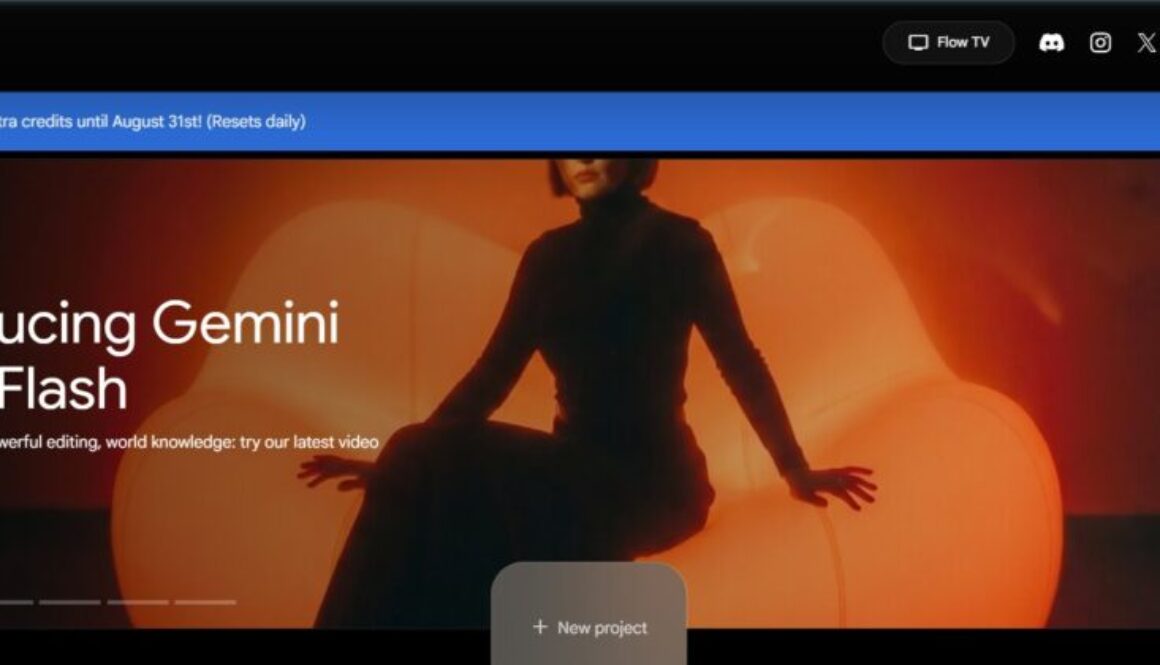
On the Flow dashboard, click + New project. One project = one video. Keep every scene of the same video inside the same project so your characters and clips stay together.

Inside the project you get a clean workspace. The prompt box sits at the bottom — “What do you want to create?” — and the left sidebar holds All Media, Characters, Scenes and Tools. Next to the send arrow you set the output: Video · 10s, aspect ratio, and how many variations to generate.

Workflow 1: Trending videos with random characters (fast)
Use this when the video is one shot and nobody needs to reappear — comedy skits, product shots, city b-roll, meme videos. It takes about five minutes.
Get your prompt from ChatGPT or Claude first
Don’t type a one-line idea into Flow. Open ChatGPT or Claude, describe your idea in your own words, then ask:
Give me a prompt for Google Flow. Include camera movement, location, wardrobe, lighting, lens, dialogue with the exact lines, aspect ratio and duration. One continuous take.
You’ll get back a full shot description instead of a vague sentence. Paste that into the Google Flow prompt box and hit generate. That single habit is the difference between clips that look AI-made and clips that look shot.
Sample prompt — random characters
Here’s a real prompt from one of my own videos. Notice how specific it gets about costume, road, light and dialogue — nothing is left for the model to guess.
Cinematic tracking shot, camera on a vehicle moving parallel to a motorcycle at matched speed, riders held frame right. Two homemade costumed characters ride one motorcycle down a narrow Kerala road — coconut palms and banana plants both sides, red laterite shoulders, pastel houses, wet monsoon tarmac. FRONT RIDER: lean young man in a tight hand-stitched emerald and mustard cloth hood covering his whole head, crude black stitched seams, two round dark goggle lenses sewn in. Torso in a matching patched cloth top. Bare legs, loose orange boxer shorts, rubber chappals. REAR PASSENGER: bulkier man wearing chest and shoulder armor obviously cut from painted aluminium cooking vessels, hammered dents visible, held on with jute rope. A cheap plastic emergency torch taped to his chest, glowing white. Repainted maroon motorbike helmet. Bare legs, blue checked boxer shorts. Handmade, low-budget, proudly ridiculous. No logos, no insignia. The front rider turns to camera and speaks directly to lens, animated, one hand off the bars gesturing. Dialogue (Malayalam, casual energetic): FRONT RIDER: "എടാ, ഇതുപോലത്തെ videos create ചെയ്യണോ? Comment ചെയ്യ് — ഫ്രീയായി guide അയക്കാം. Page follow ചെയ്തോ!" REAR PASSENGER (leaning forward): "വിട് speed ൽ വിട്!" Golden hour side light, humid haze, shallow depth of field, palms streaking with motion blur. Handheld micro-shake, 35mm lens, filmic grain. 10 seconds, single continuous take.
Generate two or three variations, pick the best, and you have a post. Done.
Workflow 2: Character consistency in Google Flow (the good one)
This is the workflow that gets views. If you want a series — the same mother and daughter, the same host, the same mascot across 8 scenes — you need saved characters. Random prompts will give you a different face every single time, and that’s the number-one reason AI videos flop.
Step 1 — Write the character description with AI
Go to ChatGPT or Claude and describe the person you want: age, face shape, skin tone, hair, clothing, build, expression, the kind of light they’re lit in. Ask for a character description prompt for Google Flow. Keep it to appearance only — no story, no camera moves. A character is a person, not a scene.
Step 2 — Open Characters and create your character
In the left sidebar of your project, click Characters at the top, then create a new one. Flow gives you sample archetypes — The Eccentric, The Professional, The Familiar, The Wicked, The Fantastical, The Wildcard — or you can ignore them and paste your own description into “Describe your character…”. You can also Upload a real photo or pull an image in with Add from Project.

Give it a short, easy name — Mother, Daughter, nila — because you’ll be typing it constantly. Assign a voice too, so the same character always sounds the same. Then repeat for every person in your story.
Step 3 — Mention your character with @ in the prompt
Now type @ in the prompt box. Flow shows your saved characters, images, voices and uploads. Pick one and click Add to Prompt. The character is now locked into that shot — same face, same voice, every scene.

Tell ChatGPT or Claude to write your scene prompts using the same @ names, and you can paste scene after scene straight into Flow without rewriting anything.
Sample prompt — consistent characters
@Mother and @Daughter are sitting on floor cushions beside a large window in a peaceful family home at golden sunset. @Daughter looks up at @Mother with genuine curiosity and says: "Mama, why do Muslims pray five times every day?" @Mother listens with a soft, loving smile. Natural realistic cinematic family drama, warm sunset light, vertical 9:16, accurate lip-sync, no subtitles, no text, no logo.
Short prompt, strong result — because the heavy work already lives inside the saved characters. Keep the same two @ names for scene 2, scene 3, scene 8, and the whole video holds together.
Prompt rules that make Google Flow videos look real
- Name the camera. “Tracking shot”, “handheld micro-shake”, “35mm lens” — a shot without a camera looks like a screensaver.
- Name the light. Golden hour, overcast, single window light, neon spill. Light is what sells realism.
- Write the actual dialogue in quotes. Flow lip-syncs it. Vague “they talk about food” gives you mumbling.
- One shot per prompt. Ask for three cuts in one prompt and you get mush. Generate separately, cut later.
- Say what you don’t want. “No subtitles, no text, no logo” removes 90% of the junk overlays.
- Set the ratio deliberately. 9:16 for Reels, Shorts and TikTok; 16:9 for YouTube long-form.
Mistakes to avoid
- Typing one lazy line and blaming the tool for the result.
- Skipping saved characters on a multi-scene video, then wondering why the face keeps changing.
- Putting story and camera direction inside a character description — it belongs in the scene prompt.
- Burning credits on 10 variations of a bad prompt instead of fixing the prompt.
- Posting the raw clip. Trim the first and last half-second, add your hook text, then post.
FAQ
Is Google Flow free?
There’s a free tier with a daily credit allowance, which is enough to learn on. Heavier use and the newest video models need a Google AI Pro or Ultra subscription.
How do I keep the same character in every scene?
Save the person under Characters in your project, then mention them with @ in every prompt. Don’t re-describe them in text — that’s what breaks consistency.
Can Google Flow speak languages other than English?
Yes. Write the dialogue in the language you want, in its own script, and label the tone — as in the Malayalam example above. Lip-sync follows the written line.
How long can a Google Flow clip be?
Clips are short — around 8 to 10 seconds each. Longer videos are built by generating scene by scene with the same saved characters and stitching them in your editor.
Should I write prompts in ChatGPT or Claude?
Either works. Claude tends to hold long character and continuity details better across a series; ChatGPT is quicker for one-off shots. Use whichever you already have open.
The part nobody wants to hear
You’ll watch a video and think I can’t create that. You can. What you’re actually looking at is not a better tool — everyone has the same Google Flow, the same ChatGPT, the same credits. What you’re looking at is someone who thought harder about the idea before they typed.
Google Flow is a camera, not a director. It renders exactly the amount of thinking you hand it. If you give it “make a funny video”, you get slop — and there is already an ocean of that scrolling past people every day. If you give it a specific place, a specific person, a specific line someone would actually say, you get something people stop for.
So use AI as your writer, not your brain. Bring the idea, the joke, the emotion, the local detail only you know — then let ChatGPT or Claude shape it into a prompt and let Flow shoot it. Depend on AI for the idea and it will hand you average. Bring your own head to it and the same tool suddenly looks expensive.
Make one video today. It will be rough. Make the sixth one and you’ll stop asking whether you can.
Keep going
If you want to push this further with AI tools that plug straight into your workflow, read how to connect Pinterest to Claude AI for pulling visual references automatically, and how to connect Indeed to Claude AI for a look at what these connections can actually do. More guides like this on gaznil.com.