You have seen those videos where a famous person’s face is swapped into a clip, and the movement still looks real. It is not editing skill. It is two AI tools working together: ChatGPT for the image and a motion control video model for the movement.
Here is the exact method I used, written in plain steps you can follow today. It takes about five minutes.
Quick answer: how to replace a character in a video using AI
Screenshot the first frame of the video you want to copy.
In ChatGPT, upload that screenshot plus your new character’s photo, and ask it to swap only the person.
Open an AI video tool and choose Motion Control with the Kling 3.0 Pro model.
Upload the edited ChatGPT image, add the original video as the motion reference, and hit Generate.
The video model keeps the original motion, camera angle and scene. It only changes who is in it.
Step 1: Take a screenshot of the first frame
Play the video you want to recreate and pause it right at the start. Take a screenshot of that opening frame, where the original character is clearly visible.
This frame is important because it carries the whole look of the shot: the background, the lighting, the camera distance and the pose. You are going to keep all of that and change only the person.
Tip: pick a frame where the face is not blurred and the body is not cut off. A clean first frame gives a clean final video.
Step 2: Replace the character in ChatGPT
Open ChatGPT and upload two images:
The screenshot of the first frame
The photo of the character you want to put in
Then paste this prompt:
Replace the character in the first image with the character from the second image. Keep the scene, composition, camera angle, lighting, background, pose, clothing style, and overall visual details exactly the same. Only replace the character while making the new character blend naturally into the scene. Maintain the new character’s facial identity and appearance accurately.
Generate the image. Look at the result carefully before moving on. The face should look like your chosen person, and the lighting on the face should match the lighting in the room. If it looks pasted on, regenerate once or twice.
If you want more control over this step, our guide to 300+ ChatGPT image commands lists the exact wording that changes lighting, angle and framing.
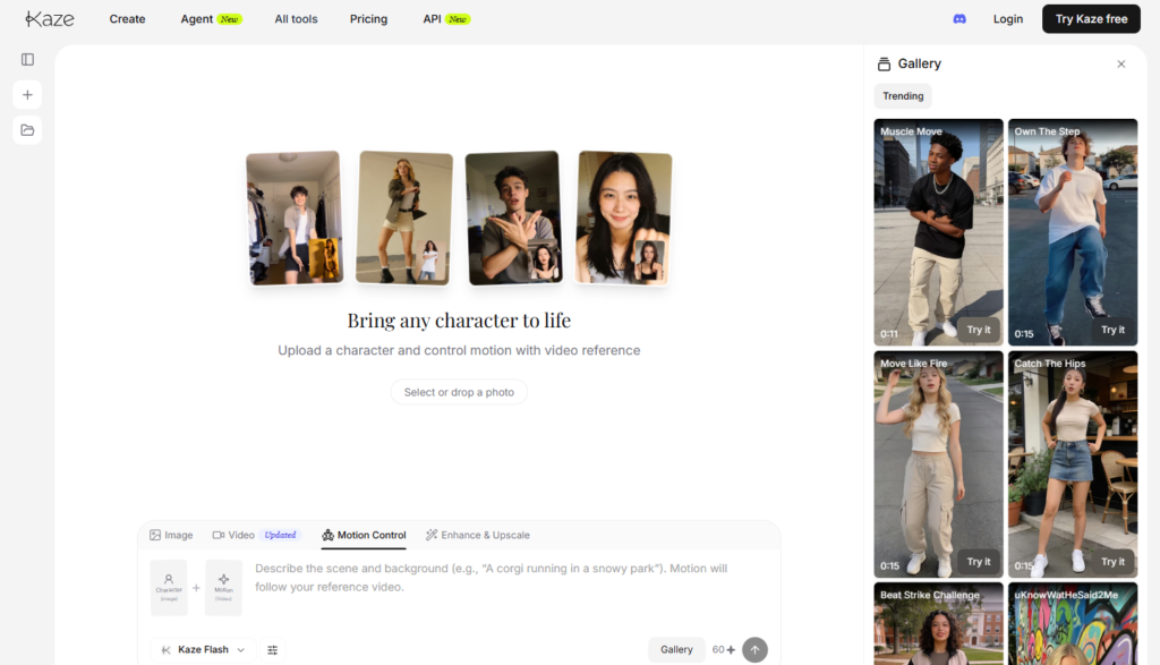
Step 3: Open the video tool and pick Motion Control
Now open your AI video tool and go to the Motion Control tab. This is the mode that copies the movement of one video onto a new image.
Kaze’s homepage — the Motion Control tab sits right in the main create bar.
Set the model to Kling 3.0 Pro. Kling handles faces, mouth movement and small head turns better than most models, which matters a lot for talking-head clips.
Step 4: Upload the edited image and generate
Upload the image ChatGPT made as your input image, and set the original clip as your motion reference. If the tool asks for a description, describe the performance in simple sentences, for example:
He remains seated and speaks naturally throughout the shot. His mouth moves continuously with realistic conversational speech, with subtle changes in expression as he talks. He makes small natural head movements and slight head turns while speaking, occasionally tilting his head and briefly leaning forward for emphasis. His shoulders and upper body make subtle movements while talking.
The Motion Control panel: upload your two source images, set the model to Kling 3.0 Pro, and describe the motion.
Click Generate and wait. That is it. The output uses your new character but follows the motion and scene of the original video.
If the generation fails
Most failures happen for one reason: the tool blocks famous people and celebrities. If your generation keeps failing, that is usually why.
What to try:
Run it again. It often passes after two or three attempts.
Change the input image slightly, for example a different crop or a slightly different expression.
Soften the prompt so it describes the action, not the person’s identity.
Use a non-celebrity face if the clip is for a client or a paid campaign.
One more thing worth saying plainly: if you are using a real person’s face, get their permission. For brand work, always use your own footage, a hired model, or a licensed face.
Why marketers should care about this
This one trick removes the most expensive part of video content: the shoot. A single good clip can now become ten versions with different presenters, different products or different languages.
That matters for ad testing. Instead of one creative running for a month, you can run five variations in a week and let the data pick the winner. We use the same logic in our SEO, web design and Meta & Google Ads services at Gaznil, where more creative variations almost always means a lower cost per result.
If you want to go further with AI video, read our walkthrough on creating trending videos with Google Flow, which covers prompt structure for full scenes rather than character swaps.
Frequently asked questions
Do I need a paid plan for this?
Most tools give free credits to start. Motion Control with a Pro model usually costs more credits per generation, so a few test runs will use up a free balance quickly.
Can I use my own video as the motion reference?
Yes, and it is the safest option. Record a short clip yourself, then swap in any character you have the rights to use.
Why does the face change slightly in the output?
Video models redraw every frame, so small drift is normal. A sharp, front-facing source photo and a shorter clip both reduce it.
How long should the clip be?
Keep it under ten seconds. Short clips hold the face better and cost fewer credits.
Want this done for your brand?
We build AI-assisted content and ad creative for businesses in Kannur, across Kerala and beyond, alongside SEO and WordPress work. Take a look at what we do at Gaznil or get in touch and tell us what you are trying to launch.
ChatGPT image commands are short keywords like /ghibli, /cinematic or /blueprint that you type under an uploaded photo or an image idea to lock in a visual style in one word. They are not official ChatGPT features and there is no command menu — they work because the model reads the slash word as a style instruction instead of a subject. That is the whole trick, and it saves you writing a 60-word prompt every single time.
Below is the full list of 300+ commands, sorted into 20 categories so you can find what you need in about five seconds, plus four real results I generated while writing this and the rules that decide whether you get a great image or a mess.
What ChatGPT image commands actually are
Let’s clear up the confusion first, because most lists floating around don’t.
These are not built-in slash commands. ChatGPT has no hidden /ghibli function. What’s happening is simpler: a slash word acts as a compressed style brief. When you type /watercolor, the model reads it the same way it would read “render this as a soft watercolour painting with visible paper grain and bleeding edges” — you just skipped the typing.
Here’s the whole interaction. No prompt, no instructions, no explanation — an image, then one word:
No prompt needed — just the command. One word under the image is the entire input.
Two things follow from that, and they matter:
Spelling doesn’t have to be exact./goldenhour, /golden hour and /golden-hour all land in the same place. Nothing is being looked up in a table.
The same command gives a different image every time. That’s a feature, not a bug — if the first result is flat, run the identical command again before you rewrite anything.
They work in ChatGPT’s image generation, and the same shorthand carries over to most other image models too — Gemini, Grok, Copilot. The vocabulary is the transferable part.
How to use ChatGPT image commands
Three steps. There is genuinely nothing more to it.
Step 1 — Give it something to work on
Either upload a photo, or type the subject you want created. A photo gives you a restyle; a typed subject gives you a fresh generation.
Step 2 — Put the command on the line below
[upload your photo]
/ghibli
Send it. That’s the entire interaction.
Step 3 — Add your subject for accuracy
A command on its own is a style with no subject, so the model invents one. Name the subject and the hit rate jumps:
/popart a cutting chai glass on a steel table
/isometric a small bakery corner shop
/blueprint a mechanical keyboard, exploded view
Four commands, one photo — real results
Before the full list, here’s what this actually looks like in practice. Same source photo, four different commands, nothing else typed.
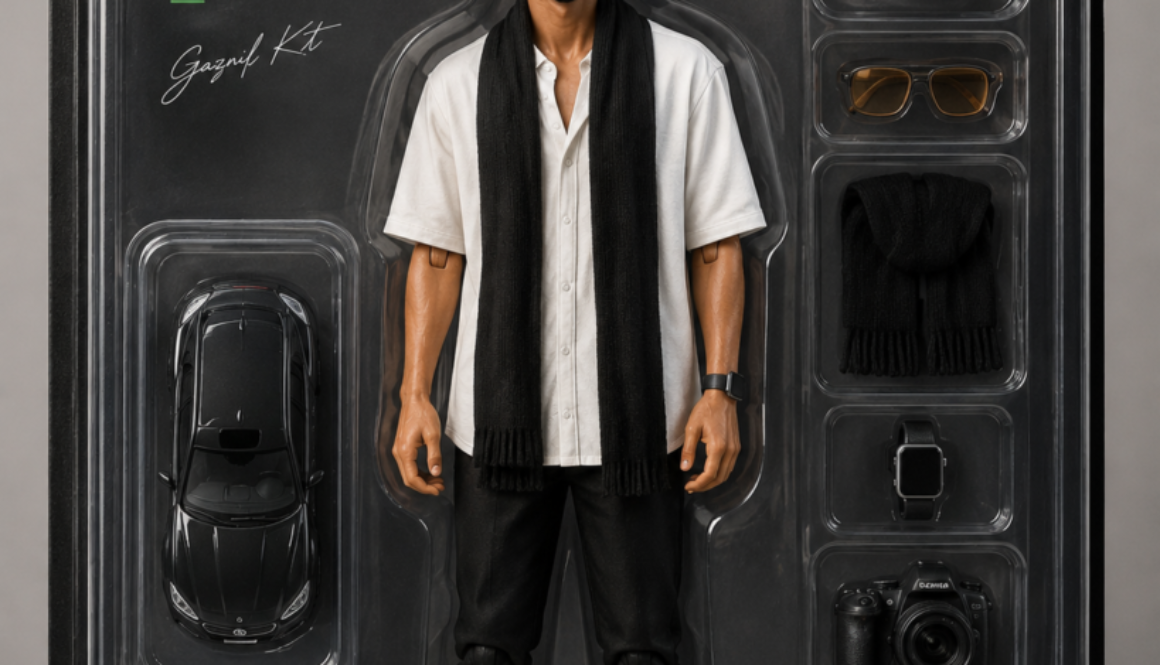
/actionfigure
Turns a person into a boxed collectible — blister pack, accessory tray, the whole retail treatment. It invents the accessories from what it sees in the photo, which is why the results feel personal rather than generic.
The /actionfigure command — one photo in, a boxed collectible out.
/magazinecover
Builds a full editorial cover around your photo — masthead, cover lines, barcode, issue date. Add the magazine name and the theme you want if you care about the words; leave it blank and it writes its own.
The /magazinecover command builds the masthead, cover lines and barcode itself.
/xray
Renders the subject as a translucent x-ray with the internal structure showing through. It works on objects and products the same way, which is what makes it useful beyond the novelty.
The /xray command keeps the pose and clothing, and shows the structure underneath.
/handwritten
This is the one that does actual work. I gave it a plain digital table of SEO logging categories and got back a page that looks like someone sat down and wrote it — ruled paper, icons, underlines, a highlighter swipe on the title.
The /handwritten command turned a plain digital table into notes that read like a person made them.
Stack two commands to get a look nobody else has
This is where the list stops being a list and starts being a toolkit. One command gives you a style everyone else is using. Two commands give you yours.
The pattern that works: one style command + one light or texture command.
/cinematic /goldenhour a fisherman pulling in nets
/isometric /neon a late-night ramen stall
/lineart /goldleaf a peacock feather
/claymation /bokeh a tiny office desk scene
Three or more commands usually cancel each other out — the model tries to satisfy everything and commits to nothing. Two is the sweet spot. Occasionally three works if the third is a pure lighting word.
The 5 most useful commands (start here)
Most of the 300 are aesthetic. These five are the ones that do actual work — they turn information into something you can post, send or teach with.
/handwritten
Turns any block of information into realistic handwritten notes — highlighter, arrows, margin doodles, the lot. Paste a chapter summary or a set of study points under it and you get a revision sheet that looks like a person made it. This is quietly the highest-performing one on social feeds.
/infographic
Takes dull numbers and returns a clean, shareable graphic. Feed it three or four stats with labels rather than a wall of text — the fewer numbers you give it, the more readable the output. Best single command for carousels and client reports.
/diagram
Maps any process or system as a connected flow, input through to output. Useful when you’re explaining how something works and words keep getting longer instead of clearer.
/xray
Cuts an object, product or body open and shows the internal structure in layers. Excellent for product explainers and anything educational — it gives you a cutaway illustration that would normally cost you a designer.
/visualize
The one to use when you don’t know what format you want. Hand it a rough idea and it picks the format itself — scene, timeline, chart or illustration. Good first move when you’re stuck.
The full list — 300 ChatGPT image commands
Twenty categories. Skim the headings, not the rows.
1. Art & drawing styles
Command
What you get
/mangacover
Japanese manga book cover layout
/comicbook
Comic panels with ink lines and halftone
/blueprint
White-on-blue technical engineering drawing
/watercolor
Soft watercolour with bleeding edges
/vaporwave
Pink-and-blue retro neon aesthetic
/pixelart
8-bit retro game graphics
/lego
Built entirely from LEGO bricks
/ascii
Picture drawn out of keyboard characters
/lowpoly
Faceted low-polygon 3D model
/origami
Folded paper sculpture
/claymation
Stop-motion clay figure look
/papercut
Layered paper cutout with depth shadows
/stainedglass
Leaded coloured-glass window panel
/oilpainting
Traditional oil on canvas, visible brushwork
/charcoal
Smudged charcoal sketch
/pencilsketch
Hand-drawn graphite drawing
/inkdrawing
Black ink line illustration
2. Animation & cartoon looks
Command
What you get
/ghibli
Soft hand-painted Studio Ghibli feel
/anime
Japanese anime illustration
/chibi
Cute big-head miniature character
/disney
Classic Disney animation styling
/pixar
Glossy Pixar-style 3D character
/dreamworks
DreamWorks animated look
3. Retro, futuristic & film aesthetics
Command
What you get
/cyberpunk
Rain-slick neon future city
/steampunk
Victorian brass gears and machinery
/noir
High-contrast black-and-white detective mood
/filmgrain
Vintage film texture and grain
/polaroid
Instant camera photo with white border
/retro90s
1990s nostalgia palette and props
/y2k
Early-2000s chrome-and-bubble futurism
/synthwave
Neon sunset gradient, grid horizon
/outrun
Retro highway at night with neon strips
/glitch
Digital distortion and channel shift
/hologram
Translucent holographic projection
4. Modern design & art movements
Command
What you get
/glassmorphism
Frosted translucent glass UI panels
/neon
Bright glowing neon tube lighting
/goldluxury
Premium black-and-gold finish
/minimal
Clean, spacious, almost empty composition
/isometric
Angled 3D illustration, no perspective distortion
/flatdesign
Modern flat vector graphics
/lineart
Single-weight outline drawing
/doodle
Loose hand-drawn doodles
/graffiti
Street wall art with tags
/spraypaint
Stencilled spray-paint artwork
/popart
Warhol-style bold colour blocks and dots
/cubism
Fractured geometric Picasso treatment
/surreal
Dream logic, impossible combinations
/abstract
Non-representational shapes and colour
/expressionism
Emotional, distorted, heavy brushwork
/renaissance
Classical European oil portrait treatment
/baroque
Rich, dramatic, heavy chiaroscuro
/gothic
Dark medieval architecture and mood
5. Fantasy, myth & history
Command
What you get
/fantasy
Magical high-fantasy world
/mythology
Gods, legends and epic scale
/dragon
Dragon-centred scene
/elf
Elegant elven character design
/wizard
Spellcasting, robes, arcane light
/samurai
Japanese warrior in armour
/ninja
Stealth assassin, low light
/viking
Nordic warrior and longship world
/medieval
Medieval kingdom setting
/ancientrome
Roman Empire architecture and dress
/ancientegypt
Pharaonic Egypt, gold and hieroglyphs
6. Nature, weather & space scenes
Command
What you get
/space
Deep outer space
/galaxy
Colourful spiral galaxy
/astronaut
Space explorer in suit
/mars
Red planet surface
/moonlight
Cool moonlit night scene
/underwater
Beneath the surface, light shafts
/ocean
Open ocean scenery
/jungle
Dense tropical forest
/desert
Sand dunes and heat haze
/volcano
Lava, ash and fire
/snow
Snow-covered landscape
/rain
Wet, rainy atmosphere
/storm
Thunderstorm and dark cloud
/sunset
Evening golden sky
/sunrise
Cool early-morning light
/goldenhour
Warm low sunlight, long shadows
/nightcity
City after dark
7. Architecture & interiors
Command
What you get
/architecture
Building design rendering
/interior
Styled room interior
/scifiroom
Futuristic interior space
/workspace
Office or creator desk setup
8. Photography & camera looks
Command
What you get
/productshot
Studio-lit commercial product photo
/macro
Extreme close-up detail
/bokeh
Creamy blurred background
/fisheye
Wide curved fisheye distortion
/droneview
Aerial shot from above
/cinematic
Movie frame with filmic colour
/imax
Huge-format wide composition
/hdr
High dynamic range, detail in every zone
/hyperreal
Sharper and cleaner than reality
/photorealistic
Indistinguishable from a real photo
9. Toys & miniatures
Command
What you get
/miniature
Tiny tilt-shift world
/toybox
Plastic toy-figure treatment
/actionfigure
Boxed collectible action figure
/funko
Funko Pop vinyl styling
10. Materials & textures
Command
What you get
/silhouette
Solid dark shape against light
/doubleexposure
Two images blended into one
/woodcarving
Carved wooden sculpture
/icecarving
Translucent ice sculpture
/marble
Veined marble statue
/bronze
Cast bronze with patina
/ceramic
Glazed ceramic finish
/porcelain
Fine white porcelain
/crystal
Clear faceted crystal
/diamond
Brilliant-cut diamond texture
/goldleaf
Applied gold foil detailing
/silverchrome
Mirror-polished chrome
/rusted
Weathered rusty metal
/oxidized
Green verdigris on copper
/carbonfiber
Woven carbon fibre surface
/liquidmetal
Flowing mercury-like metal
/moltengold
Melted, pouring gold
/glassart
Blown artistic glass
/mirror
Reflective mirrored surfaces
/holographic
Rainbow holographic foil
/iridescent
Colour that shifts with angle
/pearlescent
Soft pearl sheen
11. Light, fire & cosmic effects
Command
What you get
/bioluminescent
Natural living glow
/fire
Open flame and embers
/electric
Crackling electrical energy
/lightning
Forked lightning bolts
/smoke
Drifting smoke trails
/fog
Thick low fog
/mist
Soft atmospheric haze
/cloudscape
Dramatic sculpted clouds
/aurora
Northern lights
/eclipse
Solar eclipse corona
/planet
Detailed planet surface and rim light
/blackhole
Accretion disc and lensing
/nebula
Coloured interstellar gas cloud
/meteor
Meteor shower streaks
/comet
Comet with long tail
12. Sci-fi, robots & AI
Command
What you get
/spaceship
Spacecraft exterior or cockpit
/alienworld
Alien planet ecosystem
/robot
Humanoid robot
/mecha
Giant piloted battle robot
/android
Human-passing synthetic
/cyborg
Half human, half machine
/aiavatar
Stylised AI profile portrait
/virtualreality
VR headset world
/metaverse
Digital shared universe
/matrix
Falling green code effect
/datastream
Flowing digital data lines
/wireframe
3D wireframe mesh
13. Gaming & pixel worlds
Command
What you get
/voxel
Blocky 3D cube art
/blockworld
Cubic constructed world
/minecraft
Minecraft-style blocks
/roblox
Roblox avatar styling
/fortnite
Stylised cartoon-shooter look
/arcade
Retro arcade cabinet scene
/gameboy
Four-tone green handheld screen
/ps1
Jagged PlayStation 1 polygons
/ps2
Early-2000s console graphics
/n64
Nintendo 64 era 3D
/retroarcade
Neon arcade hall atmosphere
/pixelportrait
Face rendered in pixels
/sprite
Game sprite sheet layout
/bossfight
Video game boss encounter
14. Places & adventure
Command
What you get
/dungeon
Dark stone dungeon
/castle
Fantasy castle exterior
/throneroom
Royal hall with throne
/pirate
Pirate ship and crew theme
/treasure
Overflowing treasure chest
/shipwreck
Sunken wreck on the seabed
/lighthouse
Lighthouse on a coast
/harbor
Working port scene
/village
Countryside village
/cottagecore
Cosy rural domestic aesthetic
/fairytale
Storybook fairy-tale world
15. Craft, handmade & pattern art
Command
What you get
/storybook
Children’s picture-book illustration
/storybook3d
Dimensional pop-up book style
/puppet
Jointed wooden puppet
/felt
Soft felt fabric craft
/crochet
Crocheted yarn object
/knitted
Knitted wool texture
/embroidery
Stitched thread artwork
/quilling
Rolled paper strip art
/sandart
Sculpted sand
/chalk
Chalk on blackboard or pavement
/marker
Bold marker pen illustration
/crayon
Waxy child-like crayon drawing
/pastel
Soft chalk pastel
/gouache
Flat opaque gouache paint
/acrylic
Acrylic painting on canvas
/impasto
Thick sculptural paint ridges
/fresco
Plaster wall painting
/mosaic
Small tile mosaic
/mandala
Symmetrical circular pattern
/zentangle
Dense repetitive line patterns
/tattoo
Tattoo flash design
/tribal
Bold tribal patterning
/boho
Bohemian earthy styling
/artdeco
1920s geometric elegance
/bauhaus
Primary colours, pure geometry
/brutalist
Raw concrete, heavy blocks
/memphis
Playful 1980s shapes and squiggles
/gradientmesh
Smooth flowing colour gradients
16. Print, branding & collectibles
Command
What you get
/magazinecover
Full magazine cover with masthead
/newspaper
Printed newspaper page
/passportphoto
Formal ID-style headshot
/idcard
Employee or student ID card
/tradingcard
Collectible card with frame and stats
/poster
Movie-poster composition
/billboard
Outdoor billboard mockup
/albumcover
Music album artwork
/vinyl
Vinyl record sleeve
/bookcover
Hardcover book jacket
/storybookcover
Children’s book cover
/magicalbook
Ancient glowing spellbook
/scroll
Aged parchment scroll
/map
Illustrated map
/treasuremap
Burnt-edge pirate map
/playingcard
Playing card face design
/tarotcard
Symbolic tarot card
/stamp
Perforated postage stamp
/coin
Minted coin relief
/currency
Engraved banknote design
/waxseal
Stamped wax seal
/emblem
Premium emblem mark
/crest
Family crest
/coatofarms
Full heraldic coat of arms
/logo
Clean logo concept
/monogram
Interlocking letter mark
/badge
Award or achievement badge
/sticker
Die-cut sticker with white border
/emoji
Glossy 3D emoji
/icon
App icon on a rounded tile
17. UI, tech & science
Command
What you get
/appui
Mobile app screen mockup
/dashboard
Analytics dashboard layout
/website
Web page layout
/wireframeui
Grey-box UI blueprint
/glassui
Frosted glass interface
/darkmode
Dark theme interface
/neonui
Glowing neon interface
/terminal
Monospace command-line screen
/hud
Sci-fi heads-up display overlay
/controlpanel
Futuristic control console
/hacker
Multi-monitor hacker workspace
/serverroom
Racked server aisle
/datacenter
Enterprise-scale data centre
/quantum
Quantum computing hardware
/nanotech
Nanoscale machinery
/dna
DNA double helix
/cell
Microscopic cell cross-section
/molecule
Ball-and-stick molecule model
/atom
Atomic structure diagram
/brain
Anatomical brain illustration
/neuralnetwork
Connected AI network nodes
/fractal
Infinitely repeating pattern
/kaleidoscope
Colourful mirrored symmetry
/geometry
Clean geometric shape study
/sacredgeometry
Ritual geometric patterning
/infinity
Infinity loop artwork
/spiral
Spiral composition
/waveform
Audio waveform graphic
18. Music, objects & world places
Command
What you get
/soundwave
Sound wave visual
/musicvisualizer
Reactive music graphic
/equalizer
Audio level bars
/vinylplayer
Turntable and record
/cassette
Cassette tape
/boombox
1980s portable stereo
/headphones
Headphone product showcase
/camera
Camera body and gear
/cinemalens
Cine lens close-up
/typewriter
Vintage typewriter
/library
Grand multi-storey library
/laboratory
Science lab interior
/factory
Automated smart factory
/warehouse
Industrial warehouse
/airport
Airport terminal
/trainstation
Railway station platform
/subway
Metro station underground
/bridge
Bridge structure
/skyscraper
Tall modern tower
/cityscape
City skyline
/skyisland
Floating island in cloud
/treehouse
House built in a tree
/garden
Planted garden scene
/bonsai
Bonsai tree study
/flowerfield
Open field of flowers
19. Animals & creatures
Command
What you get
/butterfly
Butterfly with wing detail
/wolf
Wolf portrait or pack
/lion
Lion with mane detail
/eagle
Eagle in flight or perched
/owl
Owl close-up
/fox
Fox in habitat
/cat
Cat subject
/dog
Dog subject
/horse
Horse in motion
/phoenix
Firebird rising in flame
/unicorn
Unicorn
/griffin
Eagle-lion hybrid beast
/kraken
Giant sea monster
20. Time & imagination
Command
What you get
/timemachine
Time travel machine
/dreamscape
Dream world with soft logic
/paralleluniverse
Alternate version of reality
/multiverse
Many realities at once
Rules that decide whether the command works
Always name the subject. A command alone is a style with nothing to style. /cyberpunk gives you a generic city; /cyberpunk an autorickshaw stand at midnight gives you something nobody has posted.
Two commands maximum. Style plus light. Three or more and the model averages them into mud.
Re-run before you rewrite. Same command, new result. Most people abandon a good command after one bad roll.
Say what you don’t want. Adding “no text, no watermark, no border” removes most of the junk overlays in a single pass.
Set the aspect ratio out loud. “9:16 vertical” for Reels and Shorts, “16:9” for thumbnails, “1:1” for feed posts. If you don’t say it, you’ll get square and crop badly later.
Edit by conversation, not by restart. After a generation, just say “warmer light, move him left”. You keep the image and change one thing — starting a new chat throws the whole look away.
Mistakes to avoid
Pasting eight commands at once and concluding the list is fake.
Using only the famous ones. /ghibli and /pixar are the most saturated looks on the internet right now — the interesting results are three categories down.
Expecting an exact face back from an uploaded photo. These are restyles, not edits; likeness drifts.
Asking for lots of readable text inside the image. Short words are fine, paragraphs are not — use /infographic with three data points, not thirty.
Naming a living artist to copy their style. Name the movement or the medium instead, which is what these commands do anyway.
FAQ
Are ChatGPT image commands official?
No. There’s no command list built into ChatGPT and no autocomplete menu. They’re shorthand prompts that work because the model interprets the slash word as a style instruction. Nothing breaks if you invent your own.
Do I need a prompt as well as the command?
No. As the screenshot above shows, an image plus one command is enough. Adding a subject or a detail improves accuracy, but nothing is required.
Do these work on the free ChatGPT plan?
Yes, wherever image generation is available to you. Free accounts get a limited number of images per day, so paid plans mainly buy you volume and speed rather than different commands.
Can I use these commands in Gemini, Grok or Midjourney?
Mostly yes. Any model that reads natural language will understand /watercolor or /isometric. Midjourney is the exception to watch, because it uses real slash commands like /imagine — put the style word after that, not instead of it.
Can I combine two commands?
Yes, and you should. Pair a style with a lighting or texture command — /cinematic /goldenhour, /lineart /goldleaf. Keep it to two.
Why does the same command give a different image each time?
Image models are non-deterministic — every run samples a different path. Use it deliberately: run the same command three times and pick, instead of rewriting after one attempt.
Which command should a beginner start with?
/handwritten if you make educational content, /infographic if you make business content, /isometric if you want something that looks designed. Those three cover most real work.
The part nobody wants to hear
You’ll save this list, try /ghibli, get a nice picture, and stop. Almost everyone does. And then in six months the feed is full of the same soft pastel faces and none of them belong to anyone.
A style command is not a style. It’s a shortcut to a style that ten million other people also have a shortcut to. What’s actually scarce is the subject — the thing only you would think to put inside it. Nobody has your street, your shop, your grandmother’s kitchen, the specific joke your friends understand. The model can render anything; it cannot notice anything. That part is still your job.
So use the list backwards. Don’t open it and ask “what looks cool”. Decide what you want to say first, then come here and find the two words that make it look right. The people whose AI images stop your thumb aren’t using rarer commands than you. They just brought something to render.
Pick three commands from a category you’d normally skip. Make something today. It’ll be rough, and the fourth one won’t be.