You have seen those videos where a famous person’s face is swapped into a clip, and the movement still looks real. It is not editing skill. It is two AI tools working together: ChatGPT for the image and a motion control video model for the movement.
Here is the exact method I used, written in plain steps you can follow today. It takes about five minutes.
Quick answer: how to replace a character in a video using AI
- Screenshot the first frame of the video you want to copy.
- In ChatGPT, upload that screenshot plus your new character’s photo, and ask it to swap only the person.
- Open Kaze and choose Motion Control with the Kling 3.0 Pro model.
- Upload the edited ChatGPT image, add the original video as the motion reference, and hit Generate.
The video model keeps the original motion, camera angle and scene. It only changes who is in it.
Step 1: Take a screenshot of the first frame
Play the video you want to recreate and pause it right at the start. Take a screenshot of that opening frame, where the original character is clearly visible.
This frame is important because it carries the whole look of the shot: the background, the lighting, the camera distance and the pose. You are going to keep all of that and change only the person.
Tip: pick a frame where the face is not blurred and the body is not cut off. A clean first frame gives a clean final video.
Step 2: Replace the character in ChatGPT
Open ChatGPT and upload two images:
- The screenshot of the first frame
- The photo of the character you want to put in
Then paste this prompt:
Replace the character in the first image with the character from the second image. Keep the scene, composition, camera angle, lighting, background, pose, clothing style, and overall visual details exactly the same. Only replace the character while making the new character blend naturally into the scene. Maintain the new character’s facial identity and appearance accurately.
Generate the image. Look at the result carefully before moving on. The face should look like your chosen person, and the lighting on the face should match the lighting in the room. If it looks pasted on, regenerate once or twice.
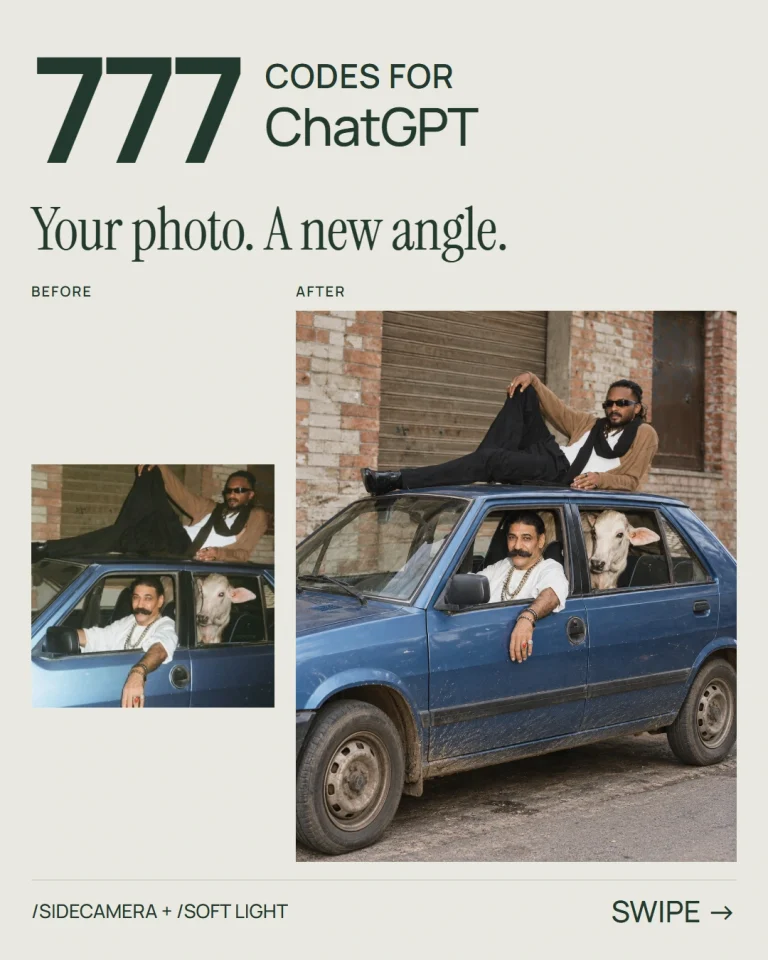
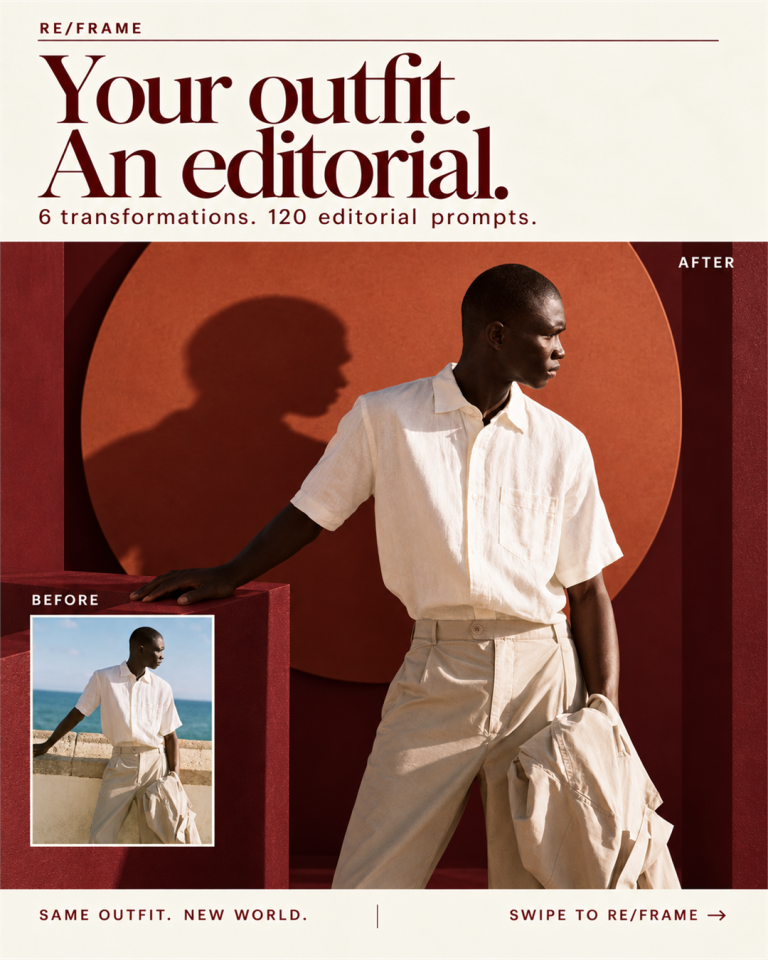
If you want more control over this step, our guide to 300+ ChatGPT image commands lists the exact wording that changes lighting, angle and framing.
Step 3: Open the video tool and pick Motion Control
Now open Kaze and go to the Motion Control tab. This is the mode that copies the movement of one video onto a new image. It is the tool used for every screenshot in this guide.
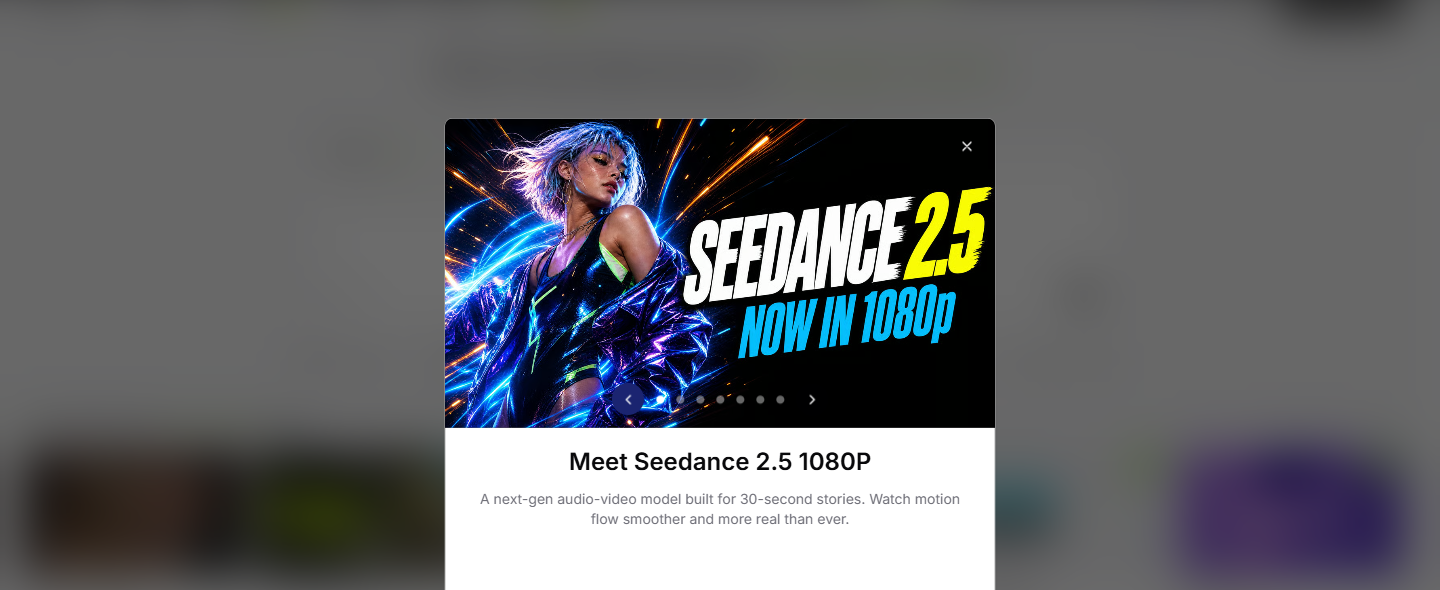
Open Kaze and try Motion Control →
Free credits to start — no card needed.
Set the model to Kling 3.0 Pro. Kling handles faces, mouth movement and small head turns better than most models, which matters a lot for talking-head clips.
Step 4: Upload the edited image and generate
Back in Kaze, upload the image ChatGPT made as your input image, and set the original clip as your motion reference. If the tool asks for a description, describe the performance in simple sentences, for example:
He remains seated and speaks naturally throughout the shot. His mouth moves continuously with realistic conversational speech, with subtle changes in expression as he talks. He makes small natural head movements and slight head turns while speaking, occasionally tilting his head and briefly leaning forward for emphasis. His shoulders and upper body make subtle movements while talking.
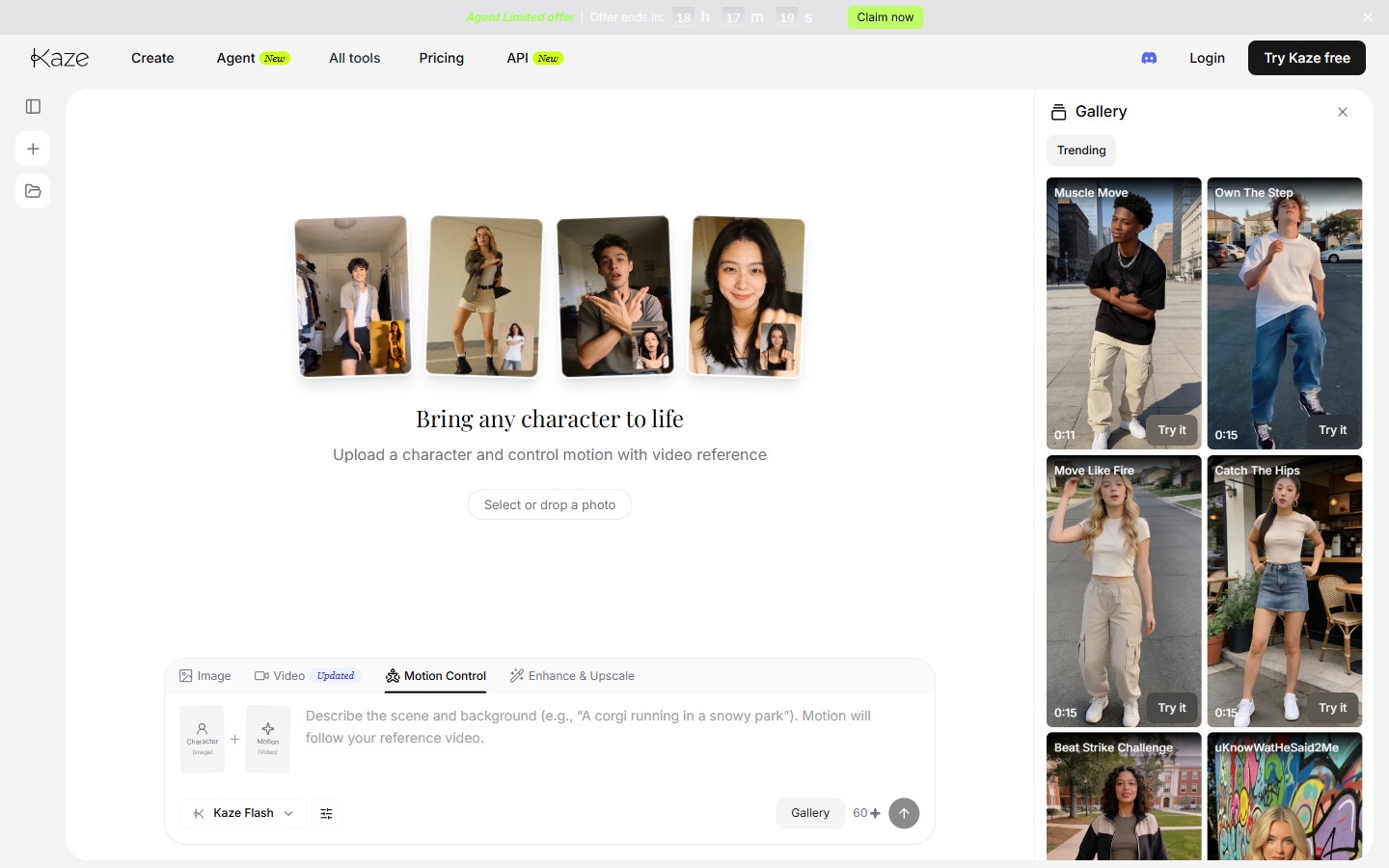
Click Generate and wait. That is it. The output uses your new character but follows the motion and scene of the original video.
If the generation fails
Most failures happen for one reason: the tool blocks famous people and celebrities. If your generation keeps failing, that is usually why.
What to try:
- Run it again. It often passes after two or three attempts.
- Change the input image slightly, for example a different crop or a slightly different expression.
- Soften the prompt so it describes the action, not the person’s identity.
- Use a non-celebrity face if the clip is for a client or a paid campaign.
One more thing worth saying plainly: if you are using a real person’s face, get their permission. For brand work, always use your own footage, a hired model, or a licensed face.
Why marketers should care about this
This one trick removes the most expensive part of video content: the shoot. A single good clip can now become ten versions with different presenters, different products or different languages.
That matters for ad testing. Instead of one creative running for a month, you can run five variations in a week and let the data pick the winner. We use the same logic in our SEO, web design and Meta & Google Ads services at Gaznil, where more creative variations almost always means a lower cost per result.
If you want to go further with AI video, read our walkthrough on creating trending videos with Google Flow, which covers prompt structure for full scenes rather than character swaps.
Frequently asked questions
Do I need a paid plan for this?
No. Kaze gives you free credits to start, which is enough to test the method. Motion Control with a Pro model costs more credits per generation, so a few runs will use a free balance up quickly.
Can I use my own video as the motion reference?
Yes, and it is the safest option. Record a short clip yourself, then swap in any character you have the rights to use.
Why does the face change slightly in the output?
Video models redraw every frame, so small drift is normal. A sharp, front-facing source photo and a shorter clip both reduce it.
How long should the clip be?
Keep it under ten seconds. Short clips hold the face better and cost fewer credits.
Want this done for your brand?
We build AI-assisted content and ad creative for businesses in Kannur, across Kerala and beyond, alongside SEO and WordPress work. Take a look at what we do at Gaznil or get in touch and tell us what you are trying to launch.