
Short answer: you connect Pinterest to Claude by adding a small free tool called an MCP server to one settings file on your computer. It takes about ten minutes, costs nothing, and needs no Pinterest API key and no Pinterest login. Once it is done, you can type “search Pinterest for beige kitchen ideas and download 20 images” straight into Claude and the pictures land in a folder on your desktop.
There are two ways to get there. Pick the one that sounds like you.
Two routes — same finish line
Route 1 — Do it yourself. You open one file, paste eight lines, restart Claude. Nothing to install beyond Node.js. About ten minutes. That is the whole first half of this guide, starting right below.
Route 2 — Let an AI do it for you. You paste one long prompt into Codex, Claude Code, or Cowork, and it finds the file, edits it, and checks it for you. You type nothing else. That is the simple way, further down the page — and yes, it works on free plans.
I am going to explain this like you have never opened a settings file in your life, because most people reading this haven’t. No step assumes you know what JSON is.
The tool
pinterest-mcp-server
Free · MIT licence · no API key · no login · Node 18+
What you are actually building
Let me kill the jargon first, because the jargon is the only hard part.
Claude on its own is a brain in a jar. It can think, but it cannot reach out and touch anything on the internet or on your computer.
MCP stands for Model Context Protocol. Forget the name. Think of it as a plug socket. It is an agreed shape that lets outside tools plug into Claude. Anthropic invented the shape and gave it away free, so anybody can build a plug.
An MCP server is one plug. Somebody already built a Pinterest one. You are not writing any code today — you are just telling Claude “this plug exists, use it.”
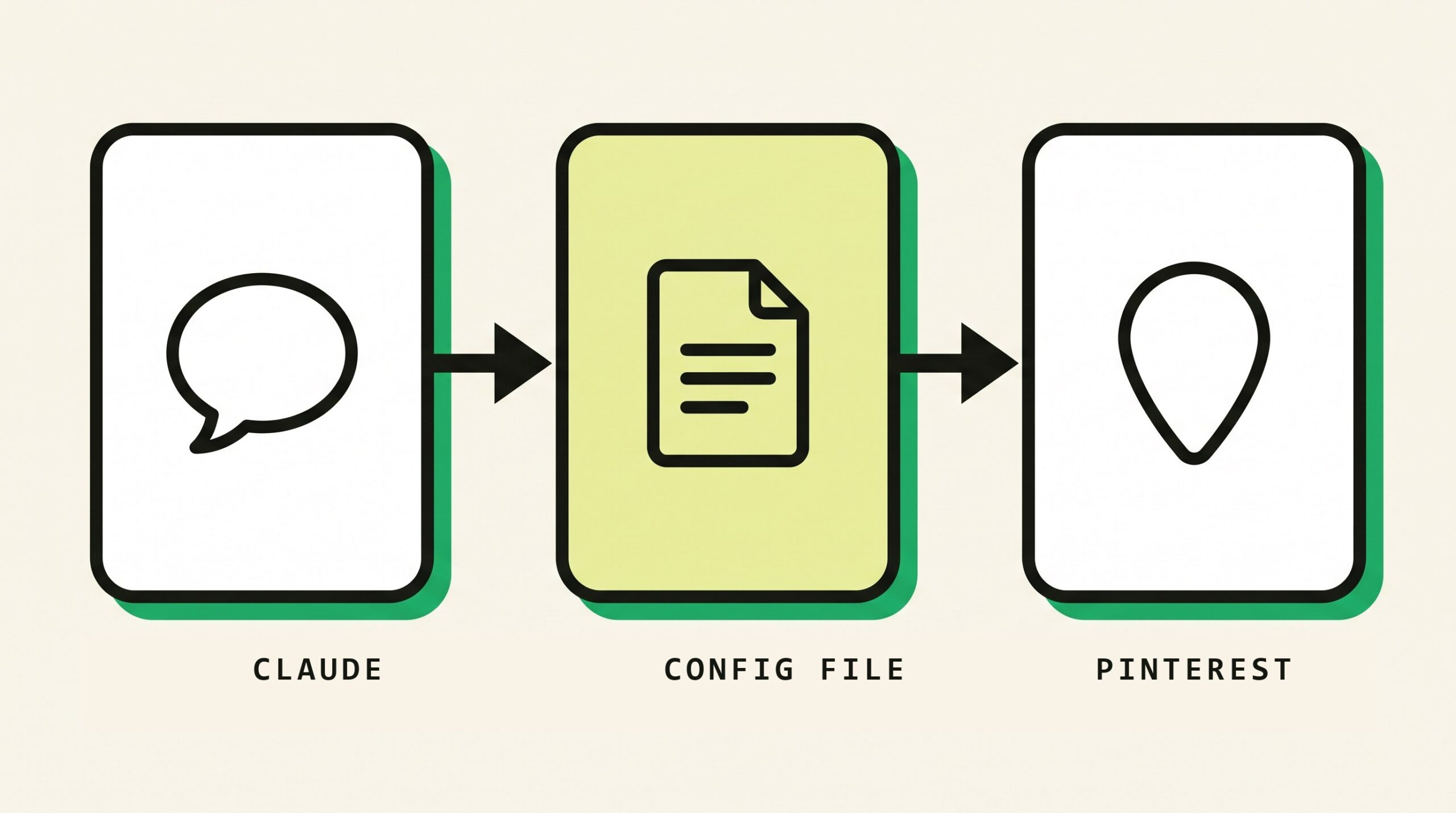
The way you tell Claude is a file called claude_desktop_config.json. Think of that file as Claude’s contacts list. Claude reads it once, at startup. If a tool is written in the contacts list, Claude can call it. If not, Claude has no idea it exists. That is genuinely the entire concept.
Read this before you start
This is not an official Pinterest product and it is not made by Anthropic. It is a free open-source project called pinterest-mcp-server, by a developer who goes by terryso. It does not use the Pinterest API. It opens Pinterest in an invisible browser window and reads the public search results, the same ones you would see if you searched Pinterest yourself while logged out. It is MIT licensed and it asks for no password. The last release was version 1.2.0 in May 2025, so it is stable but not actively maintained — use it for personal research and moodboards, and check Pinterest’s terms before you use anything commercially.
What you get once it works
Three new abilities show up inside Claude:
| Tool | In plain English |
|---|---|
pinterest_search |
Search Pinterest by keyword and hand back image links. |
pinterest_get_image_info |
Look at one specific Pinterest image and describe it. |
pinterest_search_and_download |
Search and save the pictures into a folder on your computer. |
The third one is the reason to bother. Being able to say “get me forty reference images for a bakery brand” and walk away is a genuinely different workflow from opening thirty tabs.
Before you start: two things to check
1. You need the Claude desktop app
Not claude.ai in your browser. The downloadable app for Windows or Mac. This kind of local plug only runs in the desktop app. If you have been using Claude in Chrome, go and install the app first.
2. You need Node.js
Node.js is the engine that runs the plug. It is free and it takes two minutes.
To check whether you already have it, open Command Prompt on Windows (press the Windows key, type cmd, hit Enter) or Terminal on Mac (press Cmd+Space, type terminal, hit Enter), then type this and press Enter:
node -vIf it prints something like v20.11.0, you are set — any number of 18 or higher is fine. If it says the command is not recognised, go to nodejs.org, download the big green LTS button, install it with all the default options, then close and reopen your terminal and check again.
The normal way — do it yourself in 5 steps
This is Route 1. Roughly ten minutes. If at any point you think “I do not want to do this,” skip ahead to the simple way and let a machine handle it.
Step 1 — Open Claude’s contacts list
Inside the Claude desktop app:
- Open Settings
- Click Developer
- Click Edit Config
That pops open the folder holding claude_desktop_config.json. Right-click that file and open it with any text editor — Notepad is fine, TextEdit is fine, VS Code is fine. Do not open it in Word.
If you would rather find it by hand, it lives here:
Windows:  %APPDATA%\Claude\claude_desktop_config.json
Mac:      ~/Library/Application Support/Claude/claude_desktop_config.json
Step 2 — Make the folder where pictures will land
Do this before the next step, not after. The tool will not create the folder for you, and a folder that does not exist is the second most common reason downloads silently fail.
Make a new folder on your Desktop and call it Pinterest. That is it. Just make it.
Step 3 — Paste the eight lines
If your config file is completely empty, or if it only contains {}, select everything and replace it with this:
{
  "mcpServers": {
    "pinterest": {
      "command": "npx",
      "args": ["-y", "pinterest-mcp-server"],
      "env": {
        "MCP_PINTEREST_DOWNLOAD_DIR": "C:\\Users\\YOURNAME\\Desktop\\Pinterest",
        "MCP_PINTEREST_FILENAME_TEMPLATE": "pin_{imageId}_{timestamp}.{fileExtension}"
      }
    }
  }
}
On Mac, swap that download line for this shape instead — Mac paths use forward slashes and only one of them:
"MCP_PINTEREST_DOWNLOAD_DIR": "/Users/YOURNAME/Desktop/Pinterest"Change YOURNAME to your actual computer username. On Windows that is the folder name you see under C:\Users\. Do not change anything else.
If your file already has other tools in it, do not wipe them. Find the existing "mcpServers": { line and paste the "pinterest": { ... } block inside it, with a comma between it and its neighbour. Commas go between blocks, never after the last one.
What each line is doing
"pinterest"— just a nickname. This is the name you will see in Claude’s settings.commandandargs— “fetch this package and run it.” The-ymeans “yes, install it, stop asking.”MCP_PINTEREST_DOWNLOAD_DIR— where the pictures go. Windows paths need double backslashes (\\) everywhere, not single ones. This one detail is the single biggest reason this setup fails for people. One backslash breaks the whole file.MCP_PINTEREST_FILENAME_TEMPLATE— optional naming pattern so files do not overwrite each other. You can use{imageId},{timestamp},{index}and{fileExtension}.
There is one more optional setting, MCP_PINTEREST_PROXY_SERVER, which you only need if Pinterest is blocked on your network. Leave it out unless something fails later.
Save the file. Make sure Notepad does not add .txt on the end of the filename.
Step 4 — Quit Claude properly and reopen it
This trips up almost everybody. Clicking the X does not quit Claude, it just hides it. Claude only reads the contacts list at startup, so if it never truly restarted, it never read your changes.
- Windows: find the Claude icon in the system tray, bottom-right near the clock — you may need to click the little arrow to see hidden icons — right-click it and choose Quit.
- Mac: press Cmd+Q while Claude is in front, or use the Claude menu and choose Quit.
Now open it again. The first launch is slow — give it 30 to 60 seconds while it quietly downloads the package in the background. Nothing appears to happen. That is normal. Wait.
Step 5 — Switch the tools on and test
Go to Settings → Connectors. You should now see pinterest in the list with a small Local dev tag next to it. Click it, find Tool permissions, and set the three tools to Always allow so Claude stops asking permission every single time.
Then start a new chat and type exactly this:
Search Pinterest for minimal desk setup, 5 imagesGet image links back? You are connected. Now try the one that actually matters:
Search Pinterest for beige aesthetic kitchen and download 10 imagesGo and look in your Desktop Pinterest folder. Ten files. Done.
The simple way — one prompt, and an AI sets it up for you
Route 2. If Route 1 read like a foreign language, this section is for you, and there is no shame in it — you get exactly the same result.
The idea is straightforward: instead of editing that settings file yourself, you hand the job to an AI agent that can already read and write files on your computer. Any of these will do it:
- Codex — OpenAI’s coding agent. Works on the free ChatGPT plan, with a usage limit that resets. For a job this small, one setup run will not come close to the cap. This is the cheapest route by far.
- Claude Code — Anthropic’s terminal agent. Included with a Claude Pro or Max subscription.
- Cowork — Anthropic’s agent workspace app, if you already have it.
- Cursor or any other agentic editor that can edit local files.
Open whichever one you have, and paste this whole thing. Change only the two bracketed bits on the first two lines.
Set up the Pinterest MCP server in my Claude Desktop app.

My operating system is: [Windows or Mac]
Save downloaded images to: [e.g. Desktop, in a folder called Pinterest]

Please do all of the following, in order, and do not skip the checks:

1. Confirm Node.js v18 or higher is installed by running "node -v".
   If it is missing or older, stop and tell me exactly how to install it
   for my OS before continuing.

2. Locate my Claude Desktop config file:
   - Windows: %APPDATA%\Claude\claude_desktop_config.json
   - Mac: ~/Library/Application Support/Claude/claude_desktop_config.json
   If the file does not exist, create it with valid JSON.

3. Before editing, save a backup copy next to it named
   claude_desktop_config.backup.json.

4. Add an MCP server entry named "pinterest" that runs the npm package
   "pinterest-mcp-server" via npx with the -y flag. Set these env vars:
   - MCP_PINTEREST_DOWNLOAD_DIR pointing at my download folder above
   - MCP_PINTEREST_FILENAME_TEMPLATE set to
     pin_{imageId}_{timestamp}.{fileExtension}

   CRITICAL: if I am on Windows, every backslash in the download path must
   be escaped as a double backslash in the JSON.

5. Do NOT overwrite the file. If other MCP servers are already configured,
   merge my new entry into the existing "mcpServers" object and leave every
   other entry exactly as it is.

6. Create the download folder on disk if it does not already exist.

7. Validate that the final file is syntactically valid JSON. If it is not,
   restore my backup and tell me what went wrong.

8. Print the final contents of the file so I can see it.

9. Then give me a short plain-English checklist of what I must do by hand,
   since you cannot do these for me: fully quitting and reopening Claude
   Desktop (not just closing the window), and switching the three Pinterest
   tools to "Always allow" under Settings > Connectors.
That prompt is deliberately over-specified. It forces a backup, forces the Windows backslash rule, forbids clobbering your other tools, and makes the agent validate its own work — which is where a lazy one-line prompt usually goes wrong. Steps 8 and 9 exist so you finish knowing what actually happened, instead of just being told “done.”
Once the agent finishes, you still have to quit and reopen Claude yourself. No agent can do that part for you.
When it does not work
Four things go wrong, and they go wrong in the same order for everyone.
Pinterest never appears in Connectors
Your file is broken JSON. Almost always a missing comma, or a single backslash in a Windows path where two were needed. Copy the whole file, paste it into a free checker like jsonlint.com, and it will point at the exact line. Also confirm the file is named claude_desktop_config.json and not claude_desktop_config.json.txt.
“Server disconnected”
Node.js is either not installed or not visible to your system. Run node -v in a fresh terminal. If it fails there too, reinstall Node from nodejs.org and reboot — the reboot matters on Windows.
It connects, but searches come back empty
Your network is blocking Pinterest, which is common on office and campus Wi-Fi. Try again on mobile data. If it works there, add the proxy setting to your config.
It says it downloaded, but the folder is empty
The folder path is wrong or does not exist. Go create the folder manually, then copy its real path from the address bar and paste that into the config. Recount your double backslashes while you are in there.
What to actually do with it
Getting it connected is the easy part. Here is where it earns its keep.
- Build a client moodboard in one message instead of an afternoon. “Search Pinterest for warm minimal cafe interiors, download 30, then describe the common colour palette.”
- Feed reference images into AI image prompts. This is the strongest use. Pull real visual references first, let Claude read them, then have it write your prompt. If you are already writing prompts by hand, our Fiber Codex prompt pack and The Stretch pixel-stretch prompts pair well with references pulled this way.
- Scout a niche before you design. Ask for the visual conventions of an industry before you touch a canvas, so your work reads as native instead of generic.
- Thumbnail research. Pull what is working visually in your category, then have Claude tell you what they share.
- Product photography direction. Collect fifty styles, pick three, hand them to your photographer as a brief.
The pattern underneath all of these is the same: stop describing what you want from memory, and give the model something real to look at first.
Frequently asked questions
Do I need a Pinterest account or API key?
No. Neither. This tool reads public search results through an invisible browser, so there is nothing to log into and no key to apply for. That is the main reason to choose it over the paid connectors that dominate search results for this topic — those are built for Pinterest Ads data and they do require API access and a subscription.
Is it free?
Yes. The package is MIT licensed and costs nothing. You need the Claude desktop app, which has a free tier, though heavy use of any MCP tool will run into free-plan message limits fairly quickly.
Does this work in Claude in my browser?
No. Local MCP servers like this one run only in the Claude desktop app. Browser Claude cannot reach tools on your machine.
Will this work on ChatGPT or Cursor?
The MCP standard is shared, so any client that supports local MCP servers can in principle run it — the config file location and format differ per app. This guide covers Claude Desktop specifically.
Is it safe?
It asks for no credentials and only reads public pages, which limits the risk meaningfully. That said, it is a third-party package that runs on your computer, and it has not been updated since May 2025. Read the source on GitHub if you want certainty, keep the downloads folder somewhere harmless, and do not use scraped images commercially without checking rights.
How many images can I pull at once?
Requests in the tens work comfortably. Asking for hundreds in one go tends to time out — run several smaller batches instead.
The takeaway
The whole thing comes down to one idea: Claude reads a contacts list at startup, and you just added Pinterest to it. Route 1 means editing that list yourself in about ten minutes. Route 2 means pasting one prompt and letting Codex or Claude Code do the editing, which works on a free plan.
Either way you land in the same place — a Claude that can go and fetch you forty reference images while you make tea.
If you want more of this, we keep a running directory of 80+ AI tools sorted by job, and if you are earlier in the journey, start with digital marketing explained simply.
Sources
- npm package — pinterest-mcp-server (v1.2.0, MIT, published May 2025)
- Source code — terryso/mcp-pinterest on GitHub
- Node.js — nodejs.org
- MCP standard — modelcontextprotocol.io
Guide last verified 1 August 2026.