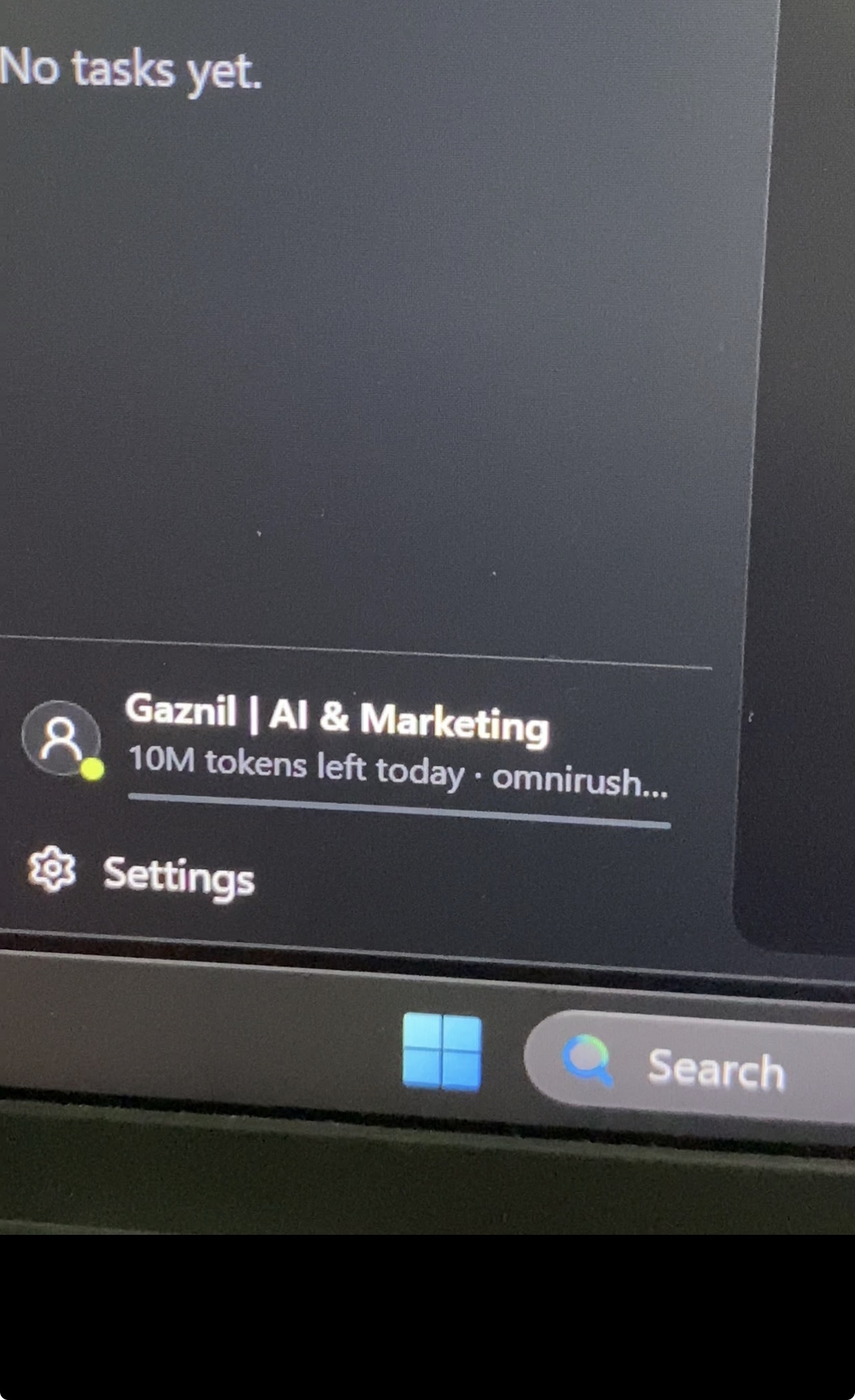
Want to use GPT-6 Astra for free? OmniRush’s signup and invitation offer gives you a way to start with 10 million tokens: 5 million for creating an account, plus another 5 million through an invitation.
The key step is using the invitation when you register.
Create your OmniRush account with my invitation link
If you are asked for an invitation code, enter:
BJWMWCRSI tested OmniRush on my Windows PC, completed the setup, and signed in successfully. This guide explains how to claim the token offer first, then start using GPT-6 Astra.
Check the offer displayed during signup. Token allowances, eligibility, and promotions can change.
How the 10 million free tokens work
The offer shared with this guide combines two allowances:
| How you receive tokens | Amount |
|---|---|
| Create a new OmniRush account | 5 million |
| Use the invitation link or code | Additional 5 million |
| Total with the invitation bonus | 10 million |
Tokens measure the text a model processes and generates. They are not a fixed number of messages: longer conversations and larger tasks can use more tokens.
Claim your tokens using invitation code BJWMWCRS
Follow these steps:
- Open Gaznil’s OmniRush invitation link.
- Create your account and complete the signup instructions.
- If the form asks for an invitation code, enter BJWMWCRS.
- Complete any account approval step shown.
- Check your account balance to confirm the invitation bonus has been applied.
The link contains the referral code. If OmniRush still asks you to enter it manually, use the same code in the invitation field.
Sign up with invitation code BJWMWCRS
What is GPT-6 Astra access through OmniRush?
OmniRush lists GPT-6 Astra among the models available to its accounts. You access the model through OmniRush’s tools and use the allowance associated with your OmniRush account.
This guide covers that access. It does not provide a ChatGPT subscription or add tokens to an existing ChatGPT account. See the official OmniRush documentation for supported models and platforms.
How to start using GPT-6 Astra on Windows
After claiming the account offer, connect OmniRush on your computer. Its current Windows instructions use Ubuntu through WSL.
WSL lets Ubuntu run inside Windows. You can keep using Windows normally.
If Ubuntu and OmniRush are already installed, skip to the sign-in step.
1. Install Ubuntu
Open Start, search for PowerShell, right-click it, and select Run as administrator.
Run:
wsl --installRestart if prompted. Then open Ubuntu from Start and create an Ubuntu username and password.
These steps follow Microsoft’s WSL installation guide.
Tip: Nothing appears while you type your Ubuntu password. Enter it and press Enter.
2. Install Node.js and OmniRush
Run the following commands inside Ubuntu, one at a time. Wait for each command to finish before continuing.
Install the required packages:
sudo apt update && sudo apt install -y curl git libatomic1Install nvm using the official nvm installer:
curl -o- https://raw.githubusercontent.com/nvm-sh/nvm/v0.40.8/install.sh | bashLoad the updated settings:
source ~/.bashrcInstall the LTS version of Node.js:
nvm install --ltsInstall OmniRush:
npm i -g omnirush@latestCheck the version:
omnirush --versionMy installation showed version 1.0.12. Yours may be newer.
You can also check the installation location:
which omnirushWith this setup, the path should start with /home/ and include .nvm.
3. Sign in to your OmniRush account
Run:
omnirush loginThe terminal displays a device code and a sign-in link.
If no browser opens automatically:
- Open the displayed link in your Windows browser.
- Sign in to your OmniRush account.
- Find the device-code option in the console.
- Enter the code from the terminal.
- Check that it matches and approve the login yourself.
Keep Ubuntu open until it says Signed in.
Then check the setup:
omnirush doctorLook for ok auth — signed in and check for any FAIL lines.
4. Open your project and start OmniRush
For a project stored at:
C:\Users\YourName\Documents\my-projectRun this in Ubuntu, replacing the example with your actual folder:
cd "/mnt/c/Users/YourName/Documents/my-project"Then start:
omnirushCheck the model displayed in the interface. You can use /status to inspect your current session.
My larger token balance
My video also discusses a larger allowance on my account. The second screenshot shows 91.8 million tokens remaining at the time it was taken.
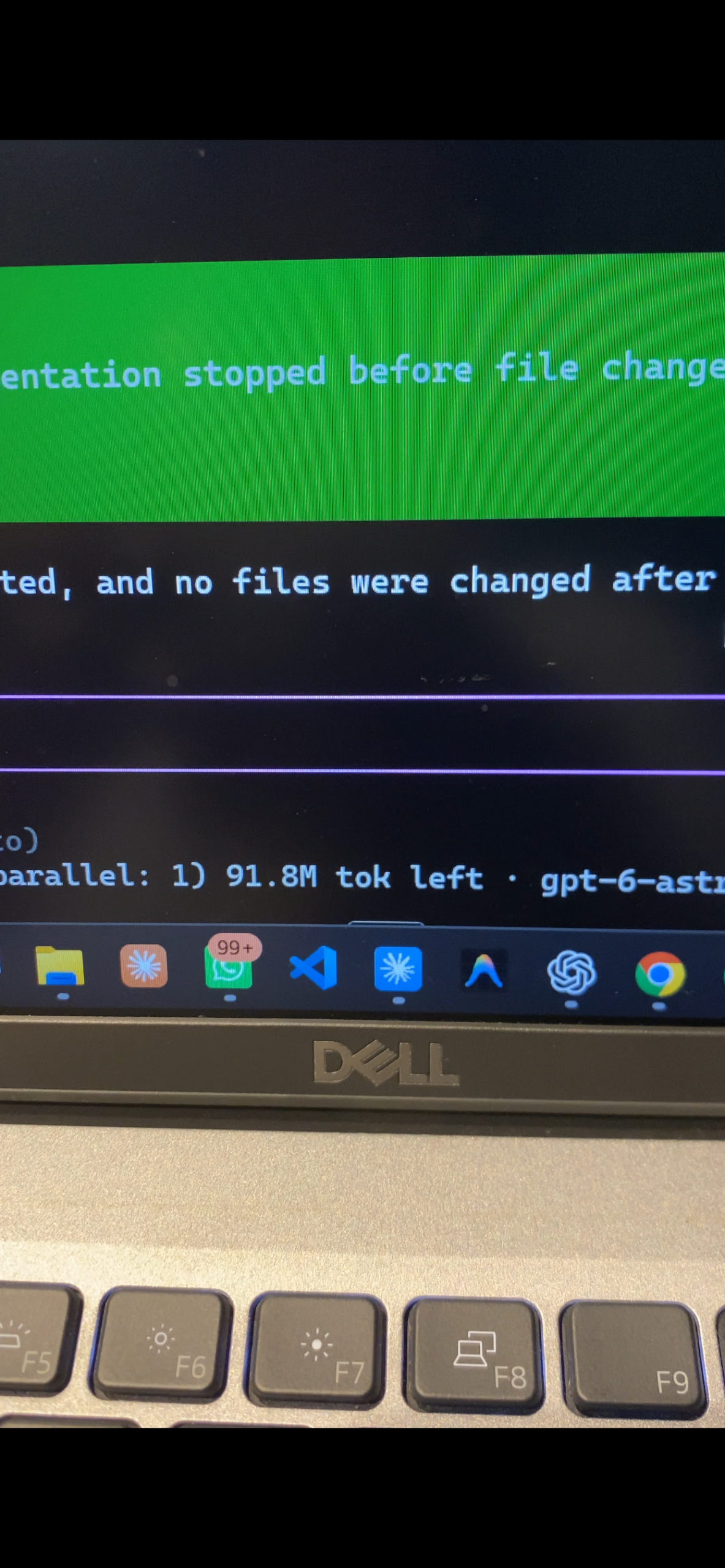
That screenshot shows my remaining balance. It does not establish the starting grant or guarantee the same allowance for every new account. This guide focuses on the 10 million token signup and invitation offer.
Frequently asked questions
What is the OmniRush invitation code?
Use BJWMWCRS, or register through this invitation link.
How do I get 10 million free tokens?
Under the offer described here, signup provides 5 million tokens and the invitation adds another 5 million. Confirm the allowance shown in your account after registering.
Do I need to install WSL before signing up?
No. Create your account and check the invitation bonus first. The Windows setup comes afterward.
What if the terminal will not paste commands?
Click inside the terminal and try Ctrl+Shift+V, Shift+Insert, or right-click. The working shortcut depends on your terminal.
Do I need to install OmniRush every time?
No. Once setup is complete, open Ubuntu, enter your project folder, and run omnirush.
Get started with GPT-6 Astra for free
Start by creating your account through the invitation link. If asked for a code, enter BJWMWCRS and verify that the bonus appears in your account.
Claim the OmniRush signup and invitation offer
Once your account is ready, follow the setup steps above to start using GPT-6 Astra on your Windows PC.