AI Video Guide · By Gaznil
How to Create AI Videos With Google Gemini — Free & Realistic
No editing software. No paid tools. Just your own phone video and Google Gemini. This is the exact free workflow Gaznil used to turn one normal clip into water, milk, an Iron Man suit, and a real gun — with the prompts included.
The Short Version
How to Create AI Videos With Google Gemini: One Clip In, Movie Effects Out
Learning how to create AI videos with Google Gemini is simpler than it looks. Here is the idea, explained so anyone can follow it: you record yourself doing a normal action — holding an empty bottle, tapping your chest, making a finger-gun. Then you upload that clip to Google Gemini and tell it, in plain words, what you want to change. Gemini keeps you, your room, and your voice exactly the same, and only swaps the one thing you asked for.
That is the whole trick behind how to create AI videos with Google Gemini. You are not building a video from zero. You already have the video — Gemini just transforms it. The empty bottle fills with water. The water turns to milk. A red-and-gold Iron Man suit assembles over your body and moves with you. Your finger-gun becomes a real, realistic pistol that points wherever your hand points.
Gaznil built the workflow below the practical way: by testing, breaking it, and fixing the prompts until the output stayed clean. Everything here is copy-paste ready.
The Process
How to Create AI Videos With Google Gemini, Step by Step
Four small steps. If you can send a WhatsApp video, you can do this.
Record Your Base Clip
Shoot a short, steady video doing the action you want to enhance — holding a bottle, tapping your chest, pointing your hand. Keep clips short (under ~8 seconds) for the cleanest results.
Open Google Gemini & Upload
Go to the Gemini app, choose the video tool, and upload your clip. This is where Gemini reads your footage and understands what is happening in the frame.
Paste a Simple Prompt
Tell Gemini exactly what to change and what to leave alone. Short, direct prompts work best — long messy prompts make the output drift. Use Gaznil’s tested prompts below.
Generate, Check, Repeat
Let Gemini render, then review. If something looks off, tweak one line and run again. Two or three passes usually lands a clean, shareable result.
Real Before & After
The 4 Transformations — With Gaznil’s Exact Prompts
Drag the slider on each example to reveal the AI result. Every prompt below is the real, tested version — copy it, swap the detail, and use it on your own clip.
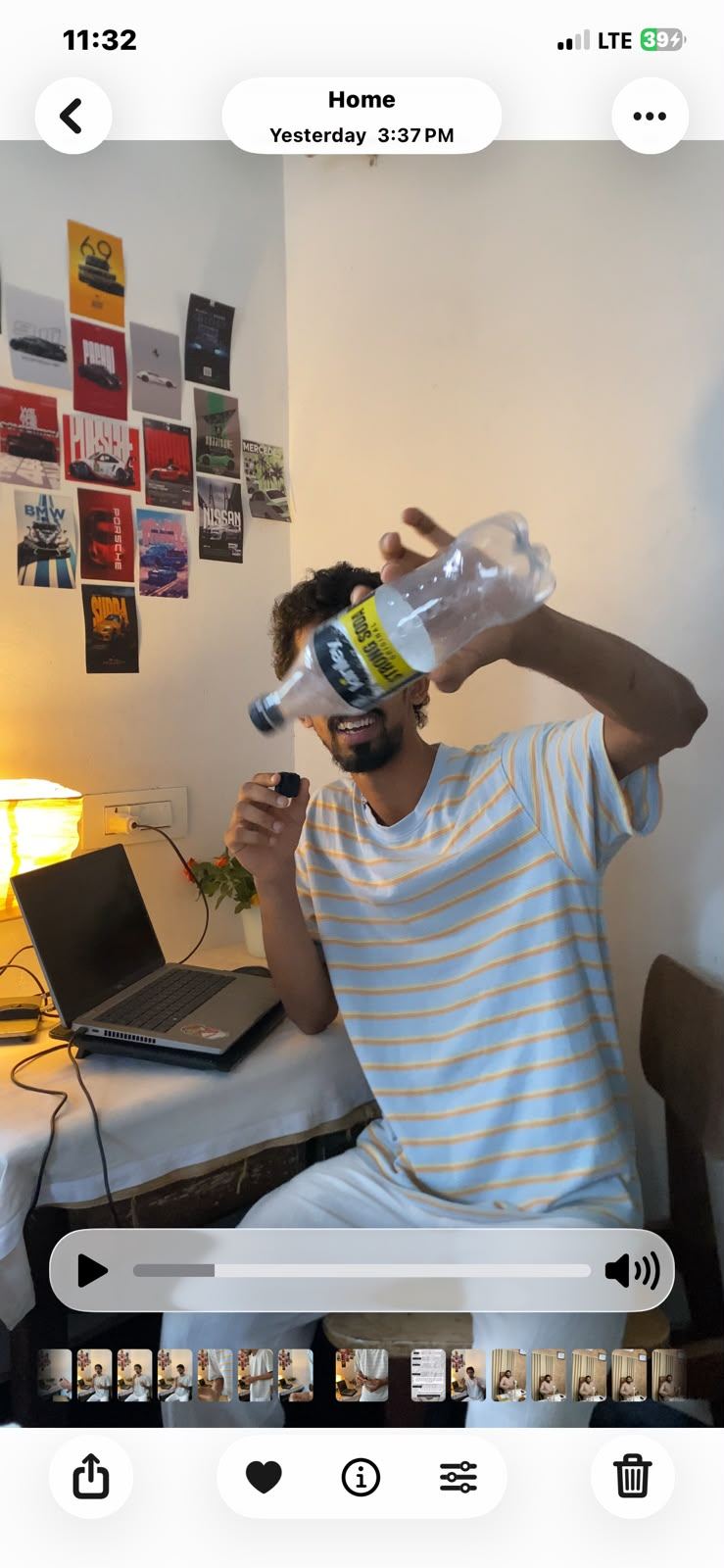
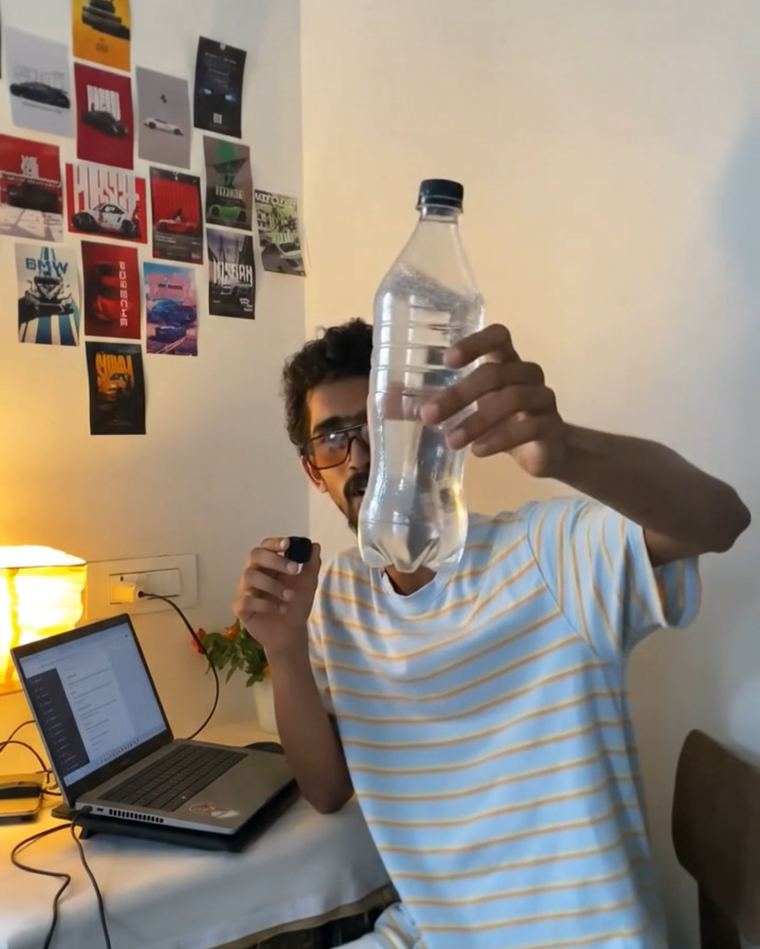
Empty Bottle → Water
The bottle starts empty and clear. The moment Gaznil mentions water, it instantly appears full — no pouring, no filling animation, just there.
 BeforeAI After
Visuals only. Empty bottle fills with clear water when he mentions it. Audio untouched.
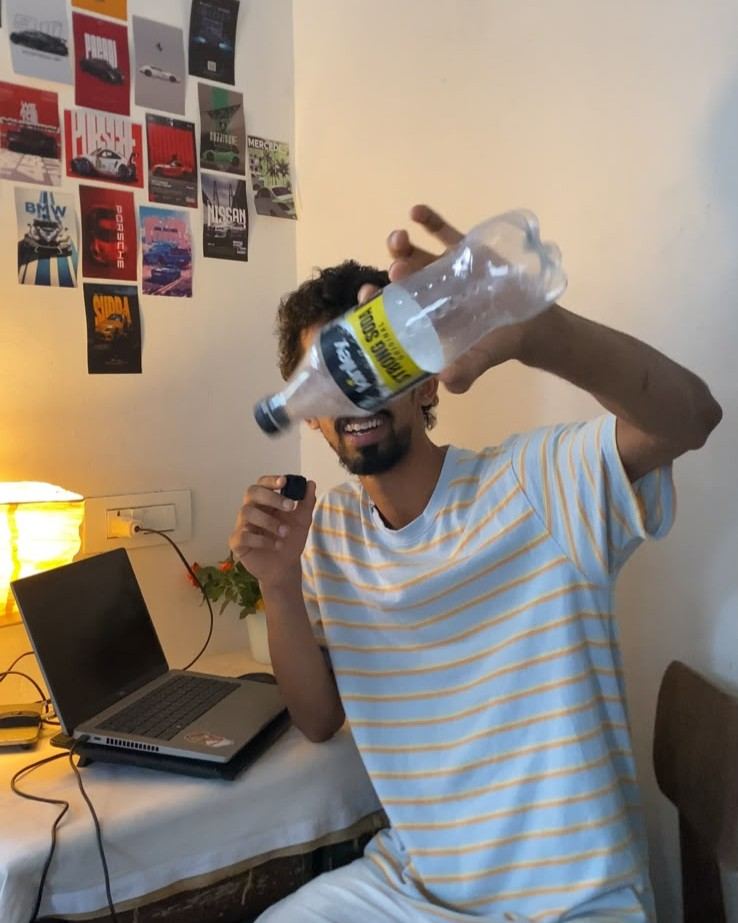
Water → Milk
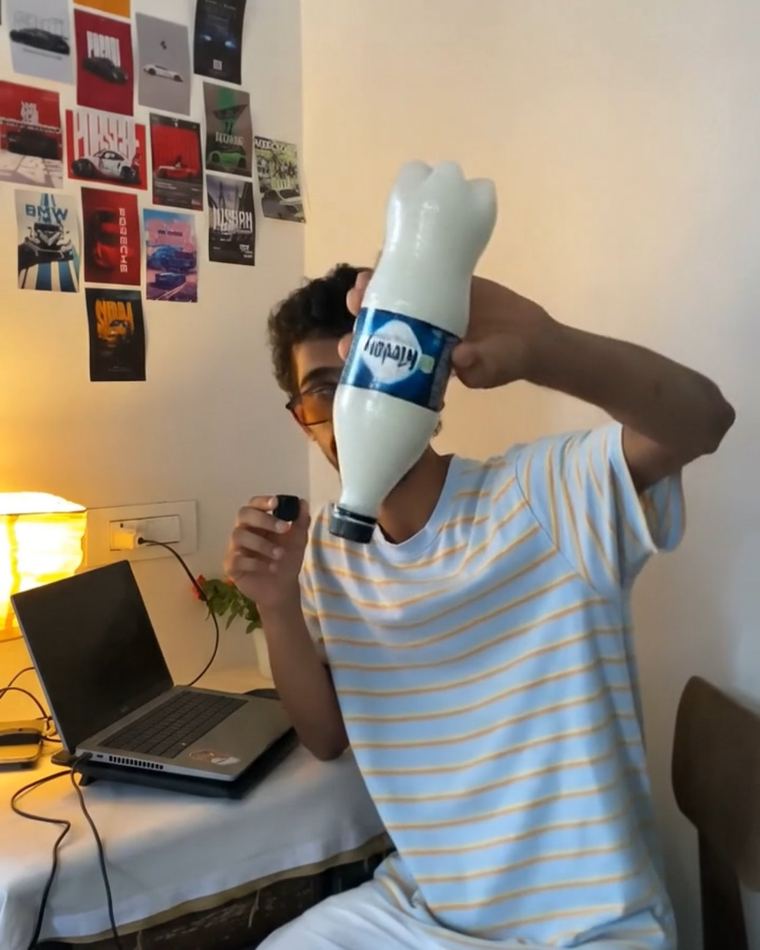
Building on the last shot, the clear liquid switches to thick white milk on cue — one frame water, next frame milk.
 BeforeAI After
Visuals only. Water in bottle switches to white milk when he mentions it. Audio untouched.
Tap Chest → Iron Man Suit
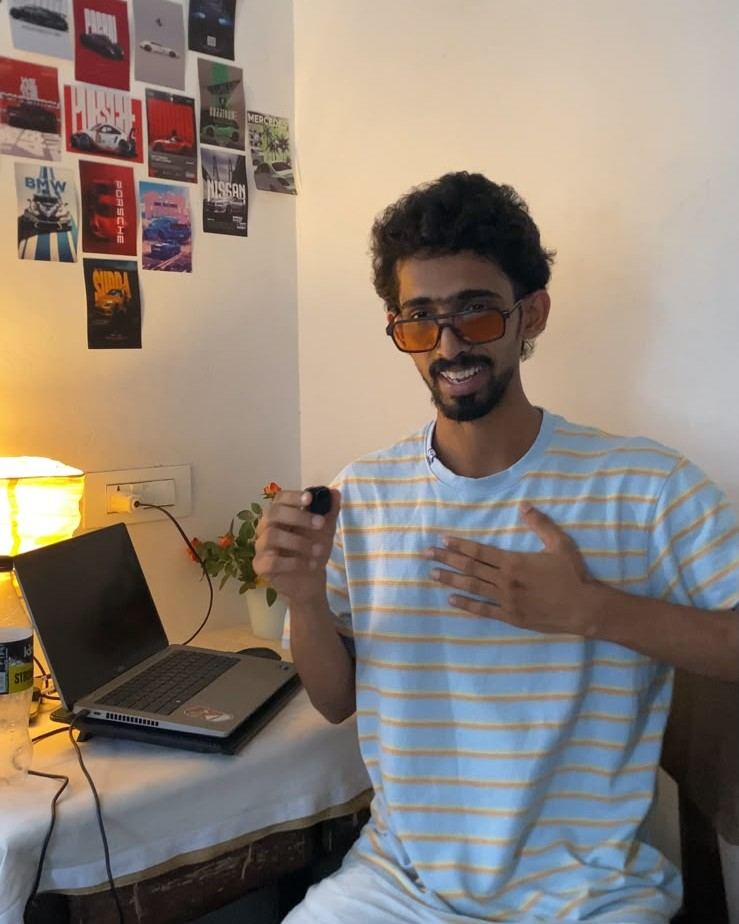
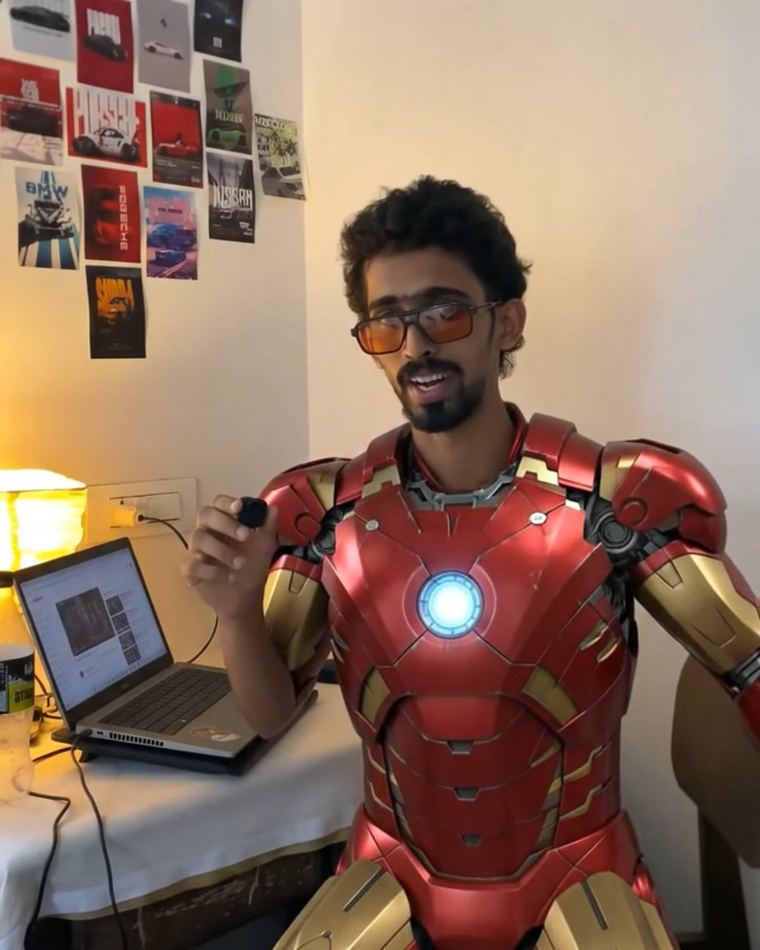
The hardest one. When Gaznil taps his chest, a red-and-gold suit assembles across his whole body — and it bends and moves with his arms, exactly like the movies.
 BeforeAI After
Visuals only. When he taps chest, red and gold Iron Man suit assembles across full body, chest outward, body tracked to his movement. Fast, smooth, movie accurate. Audio untouched.
Finger Gesture → Realistic Gun
Gaznil’s hand gesture becomes a real pistol that stays locked to his hand — pointing, raising, and moving naturally with every gesture.

 BeforeAI After
Visuals only. He is holding a realistic Beretta 92FS pistol in the hand showing gestures the whole video. He points it, shows it, moves it naturally and the gun tracks that hand every frame. Realistic grip. Audio untouched.
Gaznil’s Prompting Rules That Actually Matter
Keep it short. Long, over-detailed prompts make Gemini add movements you never asked for. Two clean lines beat a paragraph.
Protect the audio. Always end with “Audio untouched” so your original voice stays exactly as recorded.
Change one thing. Tell it what to change and that everything else stays the same. One edit per clip = clean output.
Beyond These 4
Other Things You Can Do Free in Gemini
The same simple idea — describe the change in plain words — unlocks a lot more. These need no special prompt; just say what you want, like you would explain it to a friend.
Change the Background
Put yourself on a beach, a city street, or a studio without leaving your room. Just describe the new location.
Day to Night
Turn a daytime clip into a moody night scene, or add golden-hour light, by asking for the time of day.
Add Weather
Rain, snow, fog, or falling leaves — layer realistic weather over your existing shot for instant mood.
Style Transfer
Make your video look like anime, a comic book, claymation, or old film. Name the style and let Gemini repaint it.
Swap Your Outfit
Change your t-shirt into a suit, armor, or a costume that stays on your body as you move.
Add Objects & Effects
Hand someone a glowing orb, add fire, sparks, or floating text that reacts to your motion.
Want a specific effect for your brand or reel? Tell Gaznil what you need →
Why Gemini
What Makes Google Gemini Good for AI Video
Gemini is Google’s multimodal AI — meaning it understands text, images, audio, and video together. For creators, that combination is what makes these free transformations possible.
Multimodal Input
Feed it text, a photo, audio, or a full video clip. It reads what is actually in the frame instead of guessing from words alone.
Video-to-Video Editing
Upload existing footage and ask for changes — swap elements, change style, or extend a shot — rather than generating from scratch.
Powered by Veo
Google’s Veo video model handles the heavy lifting, producing high-quality motion with synced sound on supported clips.
Conversational Editing
Refine results just by talking to it. Don’t like something? Describe the fix in plain language and run it again.
Free to Start
Core Gemini access is free, so beginners can learn the workflow without paying for editing software or render credits.
Object Permanence
Gemini’s world model keeps objects consistent across frames, which is why a tracked suit or gun stays locked to your body.
Note: some advanced video generation features may require a Google AI Pro or Ultra plan and can vary by region. The core upload-and-edit workflow shown here is the free starting point.
Why Learn This From Gaznil
Tested, Broken, Fixed — Then Shared
Gaznil doesn’t just repost AI trends. Every prompt on this page was refined through real trial-and-error until the output stayed clean and consistent.
“Finally a guide that gives the actual prompts instead of just hyping the trend. Copied them and it worked first try.”
“Explained simple enough that even a total beginner gets it. The before/after sliders make it obvious.”
About Gaznil
Who Is Gaznil?
Gaznil is a Kerala-based digital marketer and AI content creator who builds practical, no-fluff workflows for making AI video and image content — and shares the exact methods that work.
Through the GZNL.AI brand, Gaznil creates AI-generated video and image content and breaks down the tools behind it — from Google Gemini and Veo to image and prompt systems — in a way beginners can actually follow. The goal is simple: help creators make scroll-stopping content without expensive software or a studio.
Alongside content, Gaznil works in SEO and performance marketing, which is why these guides are built to genuinely teach — not just chase a trend. Want a custom AI video, a content system, or help ranking your own site? Explore Gaznil’s services or get in touch.
Questions
AI Video With Gemini — FAQ
Is creating AI videos with Google Gemini really free?
Do I need editing skills or special software?
Why does my AI output look weird or add extra movements?
How long should my video clip be?
Will the effect stay attached to my body when I move?
Can Gaznil make these AI videos for my brand or page?
Your Move
Try It Free — Or Let Gaznil Build It for You
Now you know how to create AI videos with Google Gemini for free — copy the prompts, record a clip, and run it through Gemini today. And if you want pro-level AI video content made for your brand without the trial-and-error, Gaznil is one message away.